This is a update on a the code from a previous post TFS Admin, Part II - POC Automated Order process. It has been upgraded to handle tfs2010 and different team project collections .
The feature set includes
• Order form for team project.
• Approval of team project orders
• Automatic team project creation
• Assigning of admin permissions to project admin.
• Reassigning work items to project admin
• Assigning contributors (New)
• Applying standard enterprise access rights
• Applying standard policies
• Sending notification email to project admin
Future plans
I'm in progress of implementing post creation synchronization of contributors. At the moment you can add contributors by editing the contributors field in the SharePoint list. The tool then synchronizes (add) the user as contributor to TFS, RS & WSS. So far the tool doesn't remove contributors or synchronize the list of contributors in SharePoint with the team project. The goal is to make it possible to handle the most common tfs user administrative tasks directly in the SharePoint portal, without installing any client side tools.
Code, Binaries and SharePoint list template
You can find the source, binaries and a SharePoint list template at my skidrive http://cid-5d46cae8c0008cf0.office.live.com/self.aspx/.Public/TFS2010%20Automated%20Team%20Project%20Creation.zip. The process of implementing is described in the TFS Admin, Part II - POC Automated Order process post. The process is most about about creating a custom list in sharepoint and edit the tools config file.
Thursday, October 14, 2010


Monday, September 6, 2010
Main TFS server upgrade
During the weekend my colleges and I upgraded our main tfs server with 150+ users to tfs2010. We started to plan this upgrade in April, and overall it has been a smooth and easy upgrade. But of course it always turns up things you didn't expect then you started planning. This post contains our unexpected findings, and how we solved them.
The plan
First a short description of our plan. In order to minimize the risk and minimize disruptions, we choose a migration upgrade. Choosing a migration upgrades allows us to have an good and easy rollback plan but even more important, we can do several real life rehearsals.
Our plan covered three rehearsal upgrades. The first rehearsal is just error pruning, go for a upgrade and see what problems you detected. We also start documenting , creating scripts and time every step.
The second rehearsal main objective is to verify your fixes. It is also a good way to test and make final adjustments to your own documented install process. A third run is a good idea, just to prove that everything works without any surprises. After a run without unexpected surprises you are ready to do the upgrade
SharePoint 2010
Our original plan was to move to SharePoint 2010 during the migration. During the first test run it came clear that the heave use of Conchangos Scrum for Team System template in combination with the lack of support and problem to get even the latest SfTS template to work with SharePoint 2010 was a showstopper.Back to wss3 until SfTS supports SharePoint2010
New reports missing permissions
During the migration a reports are created at /TfsReports/DefaultCollection/TeamProject . It turned out that the permissions is not migrated, leaving it inaccessible for team members. Needing to fix this 100+ folders we made a short program to copy the permissions from the old report folders to the new 2010 report folders. You can find the program and the source at my skydrive http://cid-5d46cae8c0008cf0.office.live.com/browse.aspx/.Public/SyncRsRoles.
Conchangos Scrum for Team System wss templates.
It is a well know fact that the SfTS 2.2 template and TFS2010 upgrades represents a big problem, good news is that EMC has released plans to make a WorkItem Migrator, at least a step in the right direction. Never the less, we didn't anticipate to have so much trouble getting SharePoint template for SfTS project portals in place. Without it all project portals and document libraries for project based on the SfTS template is inaccessible, SharePoint simply returning http error 404.
Our solution was to do a simply filecopy of the folder C:\Program Files\Common Files\Microsoft Shared\web server extensions\12\TEMPLATE\SiteTemplates\SCRUM, from the older server to the same location on the new server.
The new buildreport not working
The jury is still out on this one. The new build report gives us the following error.
The plan
First a short description of our plan. In order to minimize the risk and minimize disruptions, we choose a migration upgrade. Choosing a migration upgrades allows us to have an good and easy rollback plan but even more important, we can do several real life rehearsals.
Our plan covered three rehearsal upgrades. The first rehearsal is just error pruning, go for a upgrade and see what problems you detected. We also start documenting , creating scripts and time every step.
The second rehearsal main objective is to verify your fixes. It is also a good way to test and make final adjustments to your own documented install process. A third run is a good idea, just to prove that everything works without any surprises. After a run without unexpected surprises you are ready to do the upgrade
SharePoint 2010
Our original plan was to move to SharePoint 2010 during the migration. During the first test run it came clear that the heave use of Conchangos Scrum for Team System template in combination with the lack of support and problem to get even the latest SfTS template to work with SharePoint 2010 was a showstopper.Back to wss3 until SfTS supports SharePoint2010
New reports missing permissions
During the migration a reports are created at /TfsReports/DefaultCollection/TeamProject . It turned out that the permissions is not migrated, leaving it inaccessible for team members. Needing to fix this 100+ folders we made a short program to copy the permissions from the old report folders to the new 2010 report folders. You can find the program and the source at my skydrive http://cid-5d46cae8c0008cf0.office.live.com/browse.aspx/.Public/SyncRsRoles.
Conchangos Scrum for Team System wss templates.
It is a well know fact that the SfTS 2.2 template and TFS2010 upgrades represents a big problem, good news is that EMC has released plans to make a WorkItem Migrator, at least a step in the right direction. Never the less, we didn't anticipate to have so much trouble getting SharePoint template for SfTS project portals in place. Without it all project portals and document libraries for project based on the SfTS template is inaccessible, SharePoint simply returning http error 404.
Our solution was to do a simply filecopy of the folder C:\Program Files\Common Files\Microsoft Shared\web server extensions\12\TEMPLATE\SiteTemplates\SCRUM, from the older server to the same location on the new server.
The new buildreport not working
The jury is still out on this one. The new build report gives us the following error.
- File system error: The record ID is incorrect. Physical file: \\?\D:\OLAPDATA\Data\Tfs_Analysis.0.db\Dim Build Platform.0.dim\5.BuildPlatformName.(All).ostore. Logical file: .
Tuesday, August 10, 2010
Walkthrough: How to import Word test cases to MTM
Lately I been getting lots of hits on my posts about the extended Test case migrator tool, and even some questions on how to use it. This post is a quick walkthrough to show how to use the tool to import test cases in word documents to Microsoft Test Manager.
Before we start
The first thing you need to do is to get the extended test case migrator tool running. Please refer to my previous postsTool for import word test case documents to Microsoft Test Manager and http://mskold.blogspot.com/2010/06/updates-to-my-extensions-of-testcase.html. You can download either the compiled exe or the complete soure code and compile it yourself.
Getting started
The first you need to do is verify that your test case documents can be parsed by the extended test case migrator (TCM). The extension I made for TCM is intended to import test cases written for humans. It relies on that your document is formatted using font styles or colors. The simplest way to verify if your document can be parsed is simply to try to parse it using the tool.
#1 Select your source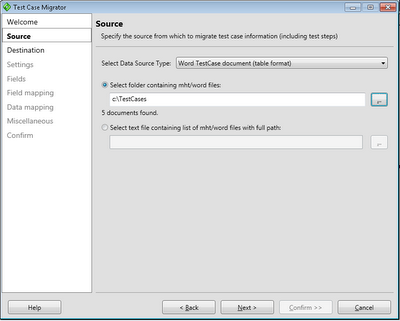
After starting and clicking Next in the welcome screen the first real step is to select your data source. In order to import word test cases select the Word TestCase document (table format) and enter or select the path to a folder containing your word test cases.
#2 Select your target team project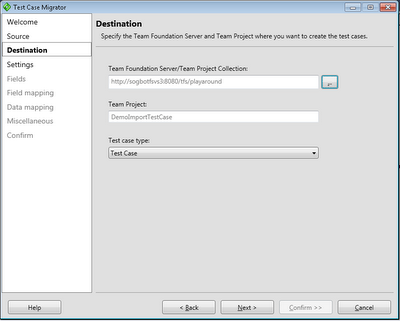
The next step is to select your target team project. You also need to select the Work Item Type representing a Test Case.
#3 Create a new settings file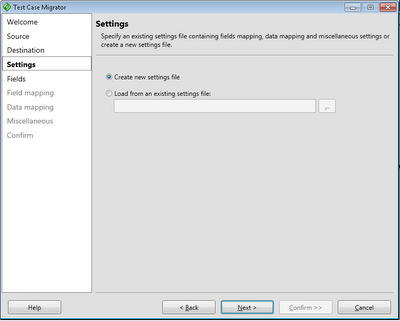
The third step is to simply create a new settings file. You can also load a previous saved settings file.
#4 Fields listing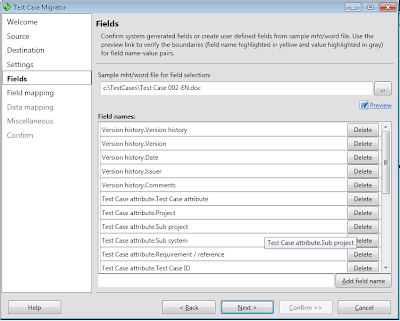
The next step is to modify the list of detected fields. The tools scans a document for labels and captions and presents a list of them. If you miss any field you can add and you can them and the tool will check if it can find it. If your list is empty or doesnt contain any of the fields you expected your document layout can't be processed by the current version of the tool.
You can also delete unwanted fields from the list to make it simpler to handle in the coming steps. When you click next all documents are scanned to verify that the fields can be found in every document. This can take a while if you have many documents, for example 100 documents takes 10-20 minutes (or more) to scan depending on your computer.
#5 Map your fields against TFS fields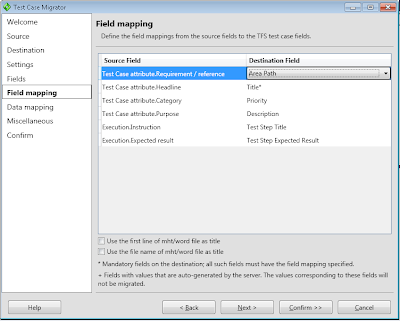
Now it's time to map your "word" fields against the fields in the tfs test case work item. The Test Step Title and Test Step Expected Result is treated special and the tool will iterate through all values and create test steps.
#6 Map values against TFS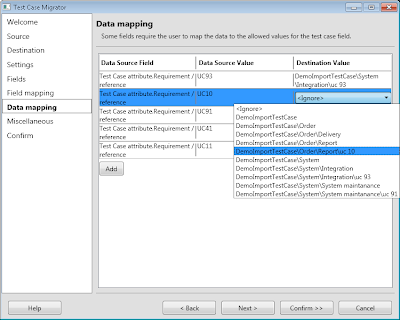 values
For fields who has defined value lists in TFS you will be prompted to map your word value against the valid TFS values. In this example I mapped the TFS Area fields against the RequirementReference word field in the previous step. This will allows me to map the text values in word to an Area path in TFS.
#7 Save settings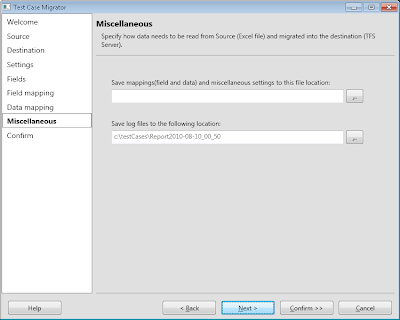
Before you start importing you can save your settings to a file and change the default location of the log file.
#8 Confirm
Simply click Save and Migrate to start the import. As most of the work is done in earlier steps the import process is rather quick.
#9 Verify outcome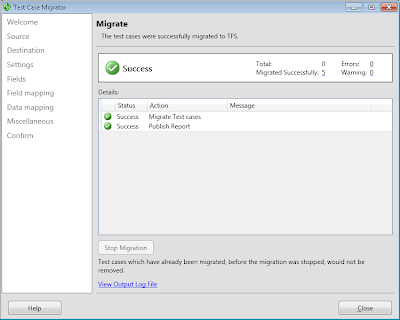
After the import is completed you will hopefully se a screen similar to this. You may also receive warnings and errors for part of the import. If you do, click the View output log file link and try to figure out what documents has problems and what to do to it.
Before we start
The first thing you need to do is to get the extended test case migrator tool running. Please refer to my previous postsTool for import word test case documents to Microsoft Test Manager and http://mskold.blogspot.com/2010/06/updates-to-my-extensions-of-testcase.html. You can download either the compiled exe or the complete soure code and compile it yourself.
Getting started
The first you need to do is verify that your test case documents can be parsed by the extended test case migrator (TCM). The extension I made for TCM is intended to import test cases written for humans. It relies on that your document is formatted using font styles or colors. The simplest way to verify if your document can be parsed is simply to try to parse it using the tool.
#1 Select your source

After starting and clicking Next in the welcome screen the first real step is to select your data source. In order to import word test cases select the Word TestCase document (table format) and enter or select the path to a folder containing your word test cases.
#2 Select your target team project

The next step is to select your target team project. You also need to select the Work Item Type representing a Test Case.
#3 Create a new settings file

The third step is to simply create a new settings file. You can also load a previous saved settings file.
#4 Fields listing

The next step is to modify the list of detected fields. The tools scans a document for labels and captions and presents a list of them. If you miss any field you can add and you can them and the tool will check if it can find it. If your list is empty or doesnt contain any of the fields you expected your document layout can't be processed by the current version of the tool.
You can also delete unwanted fields from the list to make it simpler to handle in the coming steps. When you click next all documents are scanned to verify that the fields can be found in every document. This can take a while if you have many documents, for example 100 documents takes 10-20 minutes (or more) to scan depending on your computer.
#5 Map your fields against TFS fields

Now it's time to map your "word" fields against the fields in the tfs test case work item. The Test Step Title and Test Step Expected Result is treated special and the tool will iterate through all values and create test steps.
#6 Map values against TFS
 values
 For fields who has defined value lists in TFS you will be prompted to map your word value against the valid TFS values. In this example I mapped the TFS Area fields against the RequirementReference word field in the previous step. This will allows me to map the text values in word to an Area path in TFS.
#7 Save settings

Before you start importing you can save your settings to a file and change the default location of the log file.
#8 Confirm

Simply click Save and Migrate to start the import. As most of the work is done in earlier steps the import process is rather quick.
#9 Verify outcome

After the import is completed you will hopefully se a screen similar to this. You may also receive warnings and errors for part of the import. If you do, click the View output log file link and try to figure out what documents has problems and what to do to it.
Tuesday, June 8, 2010
Updates to my extensions of the TestCase Migrator Tool
As described in my earlier post I made some extensions to the Test Case Migration Tool, http://tcmimport.codeplex.com/ so it can handle importing old test cases in word documents to Microsoft Test Manager. Recently I have tested to import 100+ test cases with a slightly different template. Of course its always something that can be done better so I've updated my extensions to be more tolerant to differences in templates.
You can find the latest bits http://cid-5d46cae8c0008cf0.office.live.com/self.aspx/.Public/TestCaseMigratorExtendedExe.zip
You can also find the source at http://cid-5d46cae8c0008cf0.office.live.com/self.aspx/.Public/TestCaseMigratorExtendedSource.zip
You can find the latest bits http://cid-5d46cae8c0008cf0.office.live.com/self.aspx/.Public/TestCaseMigratorExtendedExe.zip
You can also find the source at http://cid-5d46cae8c0008cf0.office.live.com/self.aspx/.Public/TestCaseMigratorExtendedSource.zip
Saturday, May 29, 2010
Last changed Team projects - Custom Report for tfs 2008
As a TFS admin I sometime wonder how many team projects is in use and maybe when it was last changed. Sometimes I've been forced to find out and I have created some SQL queries to run against the warehouse to figure it out.
Packaged into an custom SSRS Report
Now I have packaged those queries into a custom SSRS report for tfs2008. You download the report at my skydrive http://cid-5d46cae8c0008cf0.skydrive.live.com/self.aspx/.Public/TeamProjectLastChanged.rdl Once downloaded you simply needs to upload it to your own TFS Server and point the data source to the tfs standard TFSReportDs shared data source.
TFS2010 updated version http://cid-5d46cae8c0008cf0.office.live.com/self.aspx/.Public/TeamProjectLastChanged2010.rdl
Packaged into an custom SSRS Report
Now I have packaged those queries into a custom SSRS report for tfs2008. You download the report at my skydrive http://cid-5d46cae8c0008cf0.skydrive.live.com/self.aspx/.Public/TeamProjectLastChanged.rdl Once downloaded you simply needs to upload it to your own TFS Server and point the data source to the tfs standard TFSReportDs shared data source.
TFS2010 updated version http://cid-5d46cae8c0008cf0.office.live.com/self.aspx/.Public/TeamProjectLastChanged2010.rdl
Monday, May 17, 2010
TFS with WSS 3 to SharePoint Foundation 2010 upgrade
During the weekend we successfully upgraded a production server from TFS2010Beta2/WSS3 to TFS 2010 RTM/SharePoint Foundation2010 RTM. The new challenge in this, apart from the usual upgrade of a production server, was to include upgrading WSS3 to SharePoint Foundation 2010.
Migration scenario
In this case we went for the Server Migration/upgrade scenario, which is very good if you need to verify and test our upgrade routines. This was very important as we to include the move from WSS to SharePoint Foundation 2010 in the upgrade and the WSS upgrade procedure hasn't made it into the official installation documentation yet, so we had to find the right way before we went for the big move.
Don't forget the InstanceId
If you migrate your server to a new hardware for testing purposes, or simply keeps the original server on the network, you have to change the instanceid of your server. Buck Hodges has a post on this, including information on how to change instanceid in TFS 2010. http://blogs.msdn.com/buckh/archive/2006/10/17/creating-a-new-server-from-an-old-one-beware-of-the-instanceid.aspx
Installation of SharePoint Foundation 2010
This was really simple, once I got the install of SharePoint Foundation 2010 right. Sadly to say it took me several tries getting a new unwanted separate SQL instance for SharePoint. If you want to use your existing SQL instance you have to select Server Farm installation and then Complete Server Farm. IF you select that path, you can point out your existing SQL Server instance during configuration.
Upgrade from WSS to SharePoint Foundation 2010
Searching for information how to upgrade tfs & wss to SPF 2010 I found this posts http://sharepointgeorge.com/2009/upgrading-content-database-sharepoint-2010-database-attach-method/
During verification of content db it prompted for two non blocking missing components, as expected, as I had not configured TFS and it SharePoint extensions yet.
Attaching the content db using stsadm -o addcontentdb -url-databasename resulted in an attached and upgraded content database up and running according to the Managed content databases pages in SharePoint Central Administration. Browsing to team project portals did howevere not work at this stage.
After configuring TFS and upgrading the team project collection witch installs the TFS add-ons to SharePoint, browsing to the project portals worked fine as far as we could se.
The upgrade process in short steps
Install Server roles according to TFS installation
Install SQL Server according to TFS installation
Install SQL Server SP1 Cumulative update package 2, KB 970315 (http://support.microsoft.com/kb/970315)
Restore Reporting Services
Install SharePoint Foundation 2010 PreReq
Restart
Install SharePoint Foundation
Install Team Foundation Server
Import wss3 content database
Configure TFS
Upgrade team project collection
Update Instance Id
Migration scenario
In this case we went for the Server Migration/upgrade scenario, which is very good if you need to verify and test our upgrade routines. This was very important as we to include the move from WSS to SharePoint Foundation 2010 in the upgrade and the WSS upgrade procedure hasn't made it into the official installation documentation yet, so we had to find the right way before we went for the big move.
Don't forget the InstanceId
If you migrate your server to a new hardware for testing purposes, or simply keeps the original server on the network, you have to change the instanceid of your server. Buck Hodges has a post on this, including information on how to change instanceid in TFS 2010. http://blogs.msdn.com/buckh/archive/2006/10/17/creating-a-new-server-from-an-old-one-beware-of-the-instanceid.aspx
Installation of SharePoint Foundation 2010
This was really simple, once I got the install of SharePoint Foundation 2010 right. Sadly to say it took me several tries getting a new unwanted separate SQL instance for SharePoint. If you want to use your existing SQL instance you have to select Server Farm installation and then Complete Server Farm. IF you select that path, you can point out your existing SQL Server instance during configuration.
Upgrade from WSS to SharePoint Foundation 2010
Searching for information how to upgrade tfs & wss to SPF 2010 I found this posts http://sharepointgeorge.com/2009/upgrading-content-database-sharepoint-2010-database-attach-method/
During verification of content db it prompted for two non blocking missing components, as expected, as I had not configured TFS and it SharePoint extensions yet.
Attaching the content db using stsadm -o addcontentdb -url
After configuring TFS and upgrading the team project collection witch installs the TFS add-ons to SharePoint, browsing to the project portals worked fine as far as we could se.
The upgrade process in short steps
Install Server roles according to TFS installation
Install SQL Server according to TFS installation
Install SQL Server SP1 Cumulative update package 2, KB 970315 (http://support.microsoft.com/kb/970315)
Restore Reporting Services
Stop Reporting services Restore backup, Start Restore encryption keys Remove Orginal server from scale out deployment Verify
Restart
Install SharePoint Foundation
Select Server Farm, Select Complete Configure Create New Farm Use existing SQL server
Install Team Foundation Server
Import wss3 content database
Verify using SharePoint 2010 Management Shell and run Test-SPContentDatabase –Name -WebApplication 2 Missing components Attach database stsadm -o addcontentdb -url -databasename
Configure TFS
Upgrade team project collection
Update Instance Id
iisreset /stop tfsconfig changeserverid /sqlinstance: /databasename:Tfs_Configuration tfsconfig registerdb /sqlinstance: /databaseName:Tfs_Configuration iisreset /start net start tfsjobagent
Wednesday, April 21, 2010
Sogeti TMAP process template certified and ready

Today we finalized the RTM version of our TMAP process template and it will soon be available for free download from the official TMAP.Net site there you also can find more information about the TMAP process and the latest news from the testing field. You can also go directly to the download page located at http://eng.tmap.net/Home/archief/957794.jsp.
 Certified process template
Sogeti's TMAP template has as the first template passed the new Visual Studio Certified Process Templates Program announced by Microsoft and can therefore use the new Certified process template logo. If you want to know more about the certification program Stephanie Saad Cuthbertson has a post on the details.
TMAP.codeplex.com
The TMAP template will continue to develop and improve on codeplex. You will still find the latest bits and contribute on the future directions of the TMAP process template by filing feedback and suggestions at tmap.codeplex.com.
Subscribe to:
Posts (Atom)

 Posts
Posts


 Mattias Sköld