Have you ever wanted to have the build process generate an automated generated release notes document for all changes accumulated form the last release? This is how you can do it with Tfs Build Extensions.
The plan
The plan is simple, Let the user set a baseline label name in the build definition, get a list of changesets by comparing the baseline label with the current build label. From the list of changesets get comments, Associated Work items and changed files. With the list of changesets and work items it should be possible to generate a Release Notes document.
Now all we need to do is code this, or even better reuse something existing. Now, if you’re trying to do something within build automation, and you would need to write your own custom activities you should probably start by looking at the Community TFS build extensions project at codeplex, before you start coding.
TFS Build extensions BuildReport and CompareLabels activities
A fast look at the list of activities in the shows two interesting candidates, there is both a CompareLabels and an BuildReport activity.
Looking a bit closer, the CompareLabels activity takes two Labels and generates a list of changesets and the BuildReport activity takes a list of changesets and generates a build report in .html or .txt and you can customize the generated report by applying your own xslt transformation fie.
This is about everything we need and we should hopefully only need to drag the activities into our build process workflow and make sure we pass the output list of changesets from the CompareLabels activity to the BuildReport input parameter.
The hiccups
Putting the plan to work, we soon run into to trouble, to start with the CompareLabels activity doesn’t takes label names as input as one might hope for, instead it requires VersionControlLabel objects, and on top of that it also needs a VersionControlServer object.
At first, this may be discouraging, but it isn’t such a big problem as we can use the tfs api directly inside the build workflow, and if we manage to get an VersionControlServer we could use it to get a the VersionControlLabel objects by using the QueryLabels method of VersionControlServer.
Getting a VersionControlServer
First we need to get an instance of a VersionControlServer, so we start by declaring it as a variable. The VersionControlServer is created by calling GetService() of a tfsTeamProjectCollection object. If we have the Uri of the teamprojectcollection we can create it by specifying it in the constructor. We can get the Uri for the current collection from the BuildDetail object we have in our build. Putting it all together in (vb.net) results in this expression
scSrv=CType(
New TfsTeamProjectCollection(
New Uri(BuildDetail.BuildServer.TeamProjectCollection.Uri.ToString())
).GetService(GetType(VersionControlServer))
,
VersionControlServer)
Getting the VersionControlLabel for a label name
Once we got the scSrv we can use the QueryLabels method to get our VersionControlLabel objects from the LabelName. We have the current label in BuildDetail.BuildLabelName, but it expressed as Labelnamne@sourcecontrolpath. What we need to pass into the QueryLabel is label name and source control path in different variables.
We need to split the string into two separate strings (currentLabelName and sourcecontrolPath) by using the split method as follow.
currentLabelName = BuildDetail.LabelName.Split(New Char() {"@"c})(0)
labelSrcPath = BuildDetail.LabelName.Split(New Char() {"@"c})(1)
Now we can call QueryLabel to get the VersionControlLabel objecs,
scSrv.QueryLabels(currentLabelName ,
labelSCPath, Nothing, False)(0)
scSrv.QueryLabels(BuildReportFromBuildLabel,
labelSCPath, Nothing, False)(0)
Stitching it together
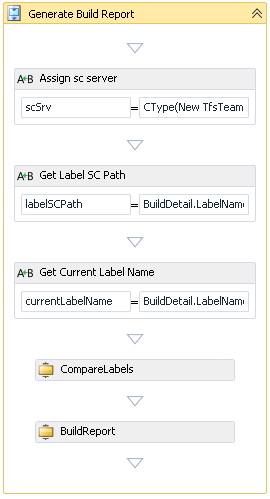
Now we got everything figured out, now we just need to complement our sequence with a couple of assigns to get the VersionControlServer and splitting the labelstring.
We also got to change the properties of the CompareLabels activity to use QueryLabel method.

Running this could be a bit noisy in the build log, so to make it a bit more silent, we can manully editing the xaml file and add
mtbwt:BuildTrackingParticipant.Importance="None" to each activity we want to exlude the output from.
We also need to declare the input baseline label name as an build argument and make it visible in the edit build definition form. This is done by fist adding a build argument like this:
To make it visible in the builddefinition editor we need add metadata for the build argument, this is done by locating the Metadata argument and clicking the edit button. We simply add an item for our baseline build label and selects the desired visibility in the View this parameter when dropdown. To make it visible in the build defninition editor select Only while editing a definition
The result
Before we run the build we need to specify the label name of the last release, so that we can get all changes after that label into our release document.
Running the build will generate a ReleaseNotes.txt, a RelaseNote.html and a ReleaseNotes.xml file in the root of the drop folder. This document is rather changesets oriented, but by supplying our own xslt file we should be able to turn the release document into a list of work items, and if we like list all changesets with comments.




 Posts
Posts


 Mattias Sköld