Showing posts with label VS2010. Show all posts

Sunday, October 7, 2012

Updates to TFS Administrators Toolkit for VS2010


A couple of days ago, I released an update for the TFS Administrators Toolkit for vs2010, it contains the following features and updates.

Subscriptions
You can now easily view your event subscriptions, server wide, by using the new Subscriptions window. The window offers a set of filters (EventType, DeleveryType, Address, Filter (Condition) ) for you to find individual subscriptions, and even a way to remove subscriptions by unsubscribing to them.

Updates to test attachment sizesUpon request I updated the Test attachment sizes feature so you now can select what project to process, instead of having to analyze all projects in the solution.

Wednesday, September 5, 2012

Find in Files : New feature of TFS Administrators Toolkit

The other day I was asked if it was possible to find out if a specific string ever had occurred in the source files of a specific project. As this is not possible in TFS out of the box today I said that it could probably be done in a couple of hours if needed.

Creating a search function    
Quite soon I was asked to put my money where my mouth was:) So I developed an Visual Studio Extension that, using the tfs api, would loop through each file and each file revision. As this would be a quite intense operation I placed it as a new feature in the TFS administrators Toolkit. I have some ideas to make it available as a standalone VS extension, extending source control explorer with a Find in File context menu, but at the moment it’s a TFS Administrators toolkit feature only.

Find in Files window
The result of my effort is the new Find in Files window in TFS Administrators Toolkit.  It enables you to search for text in the content of source controlled files.  Amongst its features is
•    Search files in source control matching selected wildcards
•    Option to search in History, searching through each file revision.
•    Option to search case sensitive or not
•    Option to search using Regular Expressions


Update!!! The Find in Files feature is availble in both VS 2010 and 2012. The 2012 version is updated with more features, as Search result prview, Source Control Explorer integration and more...

You can download the TFS Adminsitrators Toolkit from Visual Studio Gallery at

VS 2012 http://visualstudiogallery.msdn.microsoft.com/96a425aa-9ef0-4a92-b874-217d544a74bf
VS 2010 http://visualstudiogallery.msdn.microsoft.com/11f5e313-ced1-4713-9794-d7300c7d12e0

Thursday, March 15, 2012

Iteration Manager feature complete, Public beta available

A couple of weeks ago I posted about a new Visual Studio Add-In I’ve started to work on. Thegood news is that the add-in is now feature complete, at least for the intended feature set for the first release. So far it’s undergone a limited amount of testing by a handful brave persons.

Public beta available
I’m making the plugin publicly available for anyone who wants to test it and provide feedback. If you want to test it, you can simply download it form this link https://skydrive.live.com/#cid=5D46CAE8C0008CF0&id=5D46CAE8C0008CF0!1027. Once downloaded simply open it and it will install itself inside visual studio 2010.


Current feature set
Once installed, the Iteration Manager add-in adds a new menu item to the Team Project menu in team explorer. From there you can access the Iteration Manager for the selected team project and select the operation you want to use.
Iteration manager feature set
Under the Iteration Manager menu you will find this menu to access the different operations Iteration Manager can assist you with.


New Iteration
The new iteration operations assist you in creating iterations. It can assist you with the following:
• Create the Iteration Node
• Create a Sprint work item and set iteration and dates.
• Create a new Iteration query folder, by copying a te
mplate query folder, and edit all queries to select your new iteration.

The different options will be dependent on your process template and your configurations.


Change current iteration
The Change Current Iteration operations assist you in changing the current iteration in your team project by editing and changing the iteration filter for all queries in your Current sprint folder.


Configure Iteration Manager
The Configure Iteration Manager options is a place there you hopefully don’t need to go to change anything if your running any of the common process templates. If you made customizations to your team project, or have any other needs, you can configure the different actions the iteration manager performs in the other operations.

Thursday, February 23, 2012

Iteration Manager VS Add-In - Testers wanted

Are you tired of copying and editing a lot of Team Queries for every new iteration ? Are you willing to try and test a prerelease version of a new tool ?

Iteration Manager Visual Studio Add-In
I've started transforming a little tool I’ve been using to ease the bourdon of managing iterations in TFS to a full blown Visual Studio Add-In to handle Iteration management. My goal is to release it on the Visual Studio Gallery, during this spring. But before I release it would be good to have it thoroughly tested  That’s why I’m making an open invitation for everyone who would be interested in testing this new Visual Studio Add-In.

Intended feature set
This is the main features I’m intending to implement before official released on Visual Studio Gallery:
  • A Visual Studio Add-In using the current team explorer connection
  • Automatically configure settings based on process template
  • Create new Iteration, optional configurable task:
    • Create “Sprint” work item and set sprint dates
    • Create a new team query Iteration folder based on template
  • Change current iteration
    • Reconfigure team queries in current Iteration team query folder
On the backlog for future releases:
  • Vs11 version
  • “Repair” team queries after Rename of iteration (and areas)
  • Recreate all iteration folders based on template
  • Integration with Team Portals
  • Integration with Reporting Services

Current state
At this moment I have a working Visual Studio Add-In integration with team explorer, offering a simply UI to create a new Iteration and create a team query folder by copying an existing folder and replacing iteration filters in the queries. The next action is to start writing the configuration and auto detection parts.

Interested – Get in touch
If you are interested in testing the prerelease version of Iteration Manager Visual Studio Add-In please drop a line on twitter (mattiasskold) or contact me on IM,you can also dropp a file with your contact information on SkyDrive and Il will get back to you.

Tuesday, August 10, 2010

Walkthrough: How to import Word test cases to MTM

Lately I been getting lots of hits on my posts about the extended Test case migrator tool, and even some questions on how to use it. This post is a quick walkthrough to show how to use the tool to import test cases in word documents to Microsoft Test Manager.

Before we start
The first thing you need to do is to get the extended test case migrator tool running. Please refer to my previous postsTool for import word test case documents to Microsoft Test Manager and http://mskold.blogspot.com/2010/06/updates-to-my-extensions-of-testcase.html. You can download either the compiled exe or the complete soure code and compile it yourself.

Getting started
The first you need to do is verify that your test case documents can be parsed by the extended test case migrator (TCM). The extension I made for TCM is intended to import test cases written for humans. It relies on that your document is formatted using font styles or colors. The simplest way to verify if your document can be parsed is simply to try to parse it using the tool.


#1 Select your source
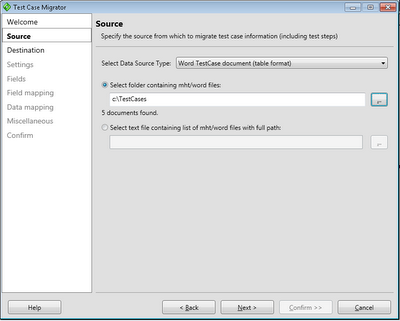
After starting and clicking Next in the welcome screen the first real step is to select your data source. In order to import word test cases select the Word TestCase document (table format) and enter or select the path to a folder containing your word test cases.


#2 Select your target team project
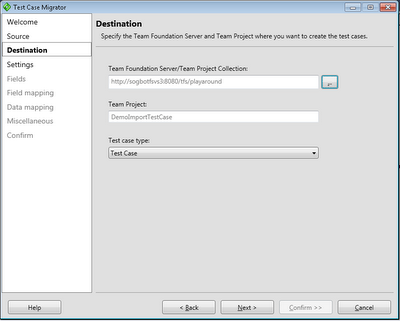
The next step is to select your target team project. You also need to select the Work Item Type representing a Test Case.


#3 Create a new settings file
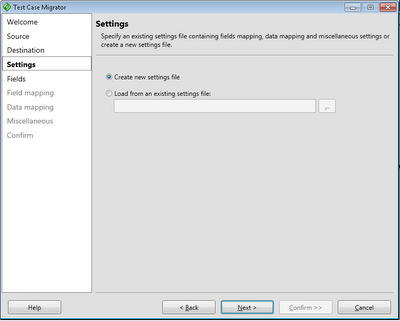
The third step is to simply create a new settings file. You can also load a previous saved settings file.


#4 Fields listing
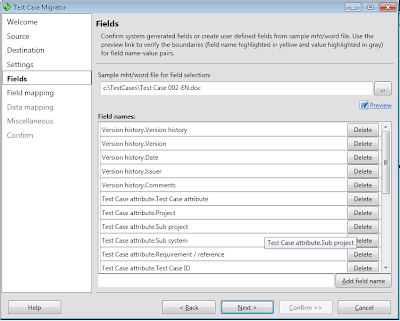
The next step is to modify the list of detected fields. The tools scans a document for labels and captions and presents a list of them. If you miss any field you can add and you can them and the tool will check if it can find it. If your list is empty or doesnt contain any of the fields you expected your document layout can't be processed by the current version of the tool.

You can also delete unwanted fields from the list to make it simpler to handle in the coming steps. When you click next all documents are scanned to verify that the fields can be found in every document. This can take a while if you have many documents, for example 100 documents takes 10-20 minutes (or more) to scan depending on your computer.


#5 Map your fields against TFS fields
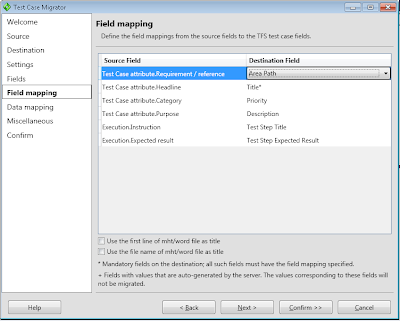
Now it's time to map your "word" fields against the fields in the tfs test case work item. The Test Step Title and Test Step Expected Result is treated special and the tool will iterate through all values and create test steps.


#6 Map values against TFS values
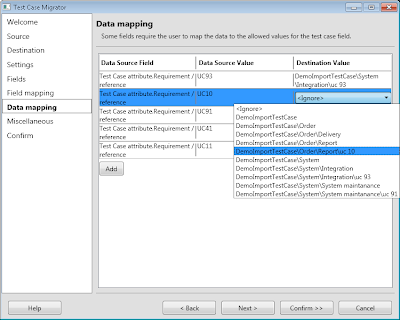
For fields who has defined value lists in TFS you will be prompted to map your word value against the valid TFS values. In this example I mapped the TFS Area fields against the RequirementReference word field in the previous step. This will allows me to map the text values in word to an Area path in TFS.


#7 Save settings
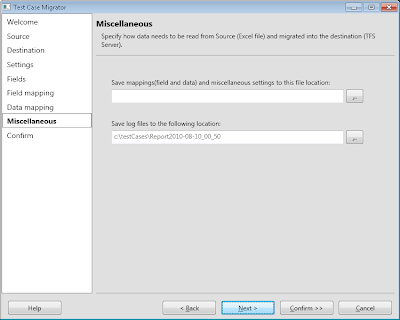
Before you start importing you can save your settings to a file and change the default location of the log file.


#8 Confirm
Simply click Save and Migrate to start the import. As most of the work is done in earlier steps the import process is rather quick.


#9 Verify outcome
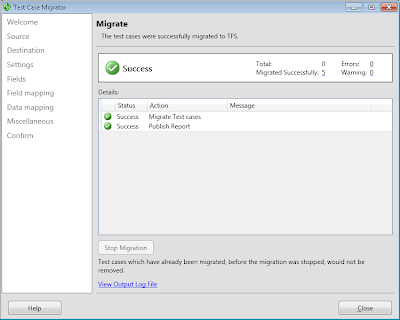
After the import is completed you will hopefully se a screen similar to this. You may also receive warnings and errors for part of the import. If you do, click the View output log file link and try to figure out what documents has problems and what to do to it.

Tuesday, June 8, 2010

Updates to my extensions of the TestCase Migrator Tool

As described in my earlier post I made some extensions to the Test Case Migration Tool, http://tcmimport.codeplex.com/ so it can handle importing old test cases in word documents to Microsoft Test Manager. Recently I have tested to import 100+ test cases with a slightly different template. Of course its always something that can be done better so I've updated my extensions to be more tolerant to differences in templates.

You can find the latest bits http://cid-5d46cae8c0008cf0.office.live.com/self.aspx/.Public/TestCaseMigratorExtendedExe.zip
You can also find the source at http://cid-5d46cae8c0008cf0.office.live.com/self.aspx/.Public/TestCaseMigratorExtendedSource.zip

Monday, May 17, 2010

TFS with WSS 3 to SharePoint Foundation 2010 upgrade

During the weekend we successfully upgraded a production server from TFS2010Beta2/WSS3 to TFS 2010 RTM/SharePoint Foundation2010 RTM. The new challenge in this, apart from the usual upgrade of a production server, was to include upgrading WSS3 to SharePoint Foundation 2010.

Migration scenario
In this case we went for the Server Migration/upgrade scenario, which is very good if you need to verify and test our upgrade routines. This was very important as we to include the move from WSS to SharePoint Foundation 2010 in the upgrade and the WSS upgrade procedure hasn't made it into the official installation documentation yet, so we had to find the right way before we went for the big move.

Don't forget the InstanceId
If you migrate your server to a new hardware for testing purposes, or simply keeps the original server on the network, you have to change the instanceid of your server. Buck Hodges has a post on this, including information on how to change instanceid in TFS 2010. http://blogs.msdn.com/buckh/archive/2006/10/17/creating-a-new-server-from-an-old-one-beware-of-the-instanceid.aspx

Installation of SharePoint Foundation 2010
This was really simple, once I got the install of SharePoint Foundation 2010 right. Sadly to say it took me several tries getting a new unwanted separate SQL instance for SharePoint. If you want to use your existing SQL instance you have to select Server Farm installation and then Complete Server Farm. IF you select that path, you can point out your existing SQL Server instance during configuration.

Upgrade from WSS to SharePoint Foundation 2010
Searching for information how to upgrade tfs & wss to SPF 2010 I found this posts http://sharepointgeorge.com/2009/upgrading-content-database-sharepoint-2010-database-attach-method/
During verification of content db it prompted for two non blocking missing components, as expected, as I had not configured TFS and it SharePoint extensions yet.
Attaching the content db using stsadm -o addcontentdb -url -databasename resulted in an attached and upgraded content database up and running according to the Managed content databases pages in SharePoint Central Administration. Browsing to team project portals did howevere not work at this stage.

After configuring TFS and upgrading the team project collection witch installs the TFS add-ons to SharePoint, browsing to the project portals worked fine as far as we could se.

The upgrade process in short steps
Install Server roles according to TFS installation
Install SQL Server according to TFS installation
Install SQL Server SP1 Cumulative update package 2, KB 970315 (http://support.microsoft.com/kb/970315)
Restore Reporting Services
  • Stop Reporting services
  • Restore backup,
  • Start
  • Restore encryption keys
  • Remove Orginal server from scale out deployment
  • Verify
Install SharePoint Foundation 2010 PreReq
Restart
Install SharePoint Foundation
  • Select Server Farm,
  • Select Complete
  • Configure
  • Create New Farm
  • Use existing SQL server

Install Team Foundation Server
Import wss3 content database
  • Verify using SharePoint 2010 Management Shell and run Test-SPContentDatabase –Name -WebApplication
  • 2 Missing components
  • Attach database stsadm -o addcontentdb -url -databasename

Configure TFS
Upgrade team project collection
Update Instance Id
  • iisreset /stop
  • tfsconfig changeserverid /sqlinstance: /databasename:Tfs_Configuration
  • tfsconfig registerdb /sqlinstance: /databaseName:Tfs_Configuration
  • iisreset /start
  • net start tfsjobagent

Wednesday, April 21, 2010

Sogeti TMAP process template certified and ready


Today we finalized the RTM version of our TMAP process template and it will soon be available for free download from the official TMAP.Net site there you also can find more information about the TMAP process and the latest news from the testing field. You can also go directly to the download page located at http://eng.tmap.net/Home/archief/957794.jsp.

Certified process template
Sogeti's TMAP template has as the first template passed the new Visual Studio Certified Process Templates Program announced by Microsoft and can therefore use the new Certified process template logo. If you want to know more about the certification program Stephanie Saad Cuthbertson has a post on the details.

TMAP.codeplex.com
The TMAP template will continue to develop and improve on codeplex. You will still find the latest bits and contribute on the future directions of the TMAP process template by filing feedback and suggestions at tmap.codeplex.com.

Upgrading TFS 2010 RTM from pre-release versions

Today I upgraded one of our internal pre-release server and moved in to a new machine. What before in the old days with TFS2008 could be a real painful experience taking several hours or even days to perform could now mostly be handled in an hour.

Preparations
This post is simply a brief description of the main steps and what to do and expect. If you want a more detailed information and as preparation always is the key to success I recommend you to read the following
Backup and In place upgrade
The first step is to backup the current environment, be it databases or taking a snapshot of your existing environment. Once that's done Its time to uninstall the previous installed pre-release versions. You can leave the .Net framework as it will be upgraded, but TFS2010 Beta2/RC must be uninstalled. After removing the Pre release versions simply install TFS2010 RTM, It's a very easy and quite fast but did take me a reboot to finish it.
Once installed its time to configure your server. If your moving from prerelease versions it's important that you select Upgrade in the first page of the configuration wizard. Follow the steps of the wizard and then you finish the upgrade you will have an upgraded Team Project Collection.

Move to new machine = Detach, Move, Attach
If you want to move to a new clean machine (without any previous installed beta software) you simply Detach your newly upgraded team project collection using Team Foundation Administrative Console. Once detached backup the database TFS_MyProjectcollectionName to file using SQL Manager.
Now it's time to move to a new fresh start. Simply Install and configure TFS2010 RTM on a clean machine. After its done, restore the previous backed up database to the new SQL Server using SQL Manager. Once installed its time to attach, simply point out the database and attach it to your server and you now have your upgraded team project collection up and running on your new server.

Friday, April 9, 2010

Tool for import word test case documents to Microsoft Test Manager

Updates to my extensions of the TestCase Migrator Tool http://mskold.blogspot.com/2010/06/updates-to-my-extensions-of-testcase.html

Recently I had a case there I needed to import old test cases written in word into Microsoft Test Manager. I looked around for a tool capable of importing an ordinary test case written in word, but I didn't find any tool or solution.

Word - the world's most used test tool ?
In my experience most projects who have had formalized test cases has done them in word documents containing test case information (title of the test case, description, pre-conditions, use case identification) and test steps. The test steps has the format of a table with columns for actions and expected results.

Test Case Migration Tool on codeplex
The best match I found was the Test Case Migrator Tool on codeplex (http://tcmimport.codeplex.com). With this tool I could import Excel test cases and MTH files (Microsoft's word template for test cases from earlier versions of Microsoft Test Edition). This looked like a promising tool but when I tried it on our existing test cases written by a standard test case template the tool didn't manage to import the test cases. It seemed the tool was to hard connected to the structure of the MTH template.

Extending the Test case migration Tool
As the project was on codeplex with the source code available I did take a look to see if I could adopt the tool to our template. As the tool had a nice separation of the logic for parsing and importing data sources , I simply created a new data source and wrote my own parsing logic for our template. At first i simply replaced the MTH data source with my, but ones I got the parsing logic to work I started to integrate it as a new data source in the UI. This turned out to be a bigger task then writing the parsing logic. It took some time but at least the result looks good.

The extended Test Case Migration Tool is available
I have uploaded both the compiled version and the source with my modifications as I guess many other will find themselves in the same situation as I was - looking for a tool to batch import word test cases. Hopefully this could be a solution for some of you .

Friday, March 26, 2010

Swedish site about VS2010 TMAP process template

Now you can read more about Sogeti's TMAP process template for Visual Studio 2010 (in Swedish). At www.sogeti.se/Test-Microsoft you can find a brief description of Microsoft test tools and Sogeti's TMAP process template.

TMAP Flyers
You can also download flyers (in Swedish) for the VS2010 TMAP and process template. There is also flyers focused only on TMAP as a method and Sogeti's other testing services.

Events about TMAP and Microsoft Test tools
You can also find information about upcoming events around Microsoft test tools and TMAP. The first event will be at Microsoft Sweden on the 23 of April. This event will be followed by several events around the country.

Tuesday, March 9, 2010

TMAP for VS2010 RC released

Clemens just released a new version of Sogetis TMAP process template for VS2010. Ive just started to install it on our swedish 2010 pre-release server so our swedish testers can evaluate ,learn and contribute to it.

Sunday, February 28, 2010

Upgrading TFS event subscriptions to 2010 SDK

Some days ago I started to upgrade one of my TFS customization to the 2010 SDK. The application I moved uses WCF to host its services and automatically subscribes and consumes TFS events. It didn’t turn to be the easy, straight on upgrade I thought it should be. This is my findings during the upgrade.

Relocated TFS SDK assemblies
The first (and about the only) thing I expected was to be replace TfsServer with TfsTeamProjectCollection, and in some cases TfsConfigurationServer. Moving my solution over to a new and clean machine with only VS2010 on it, I discovered that the Tfs SDK Assemblies has moved away from its old locations. After some searching I found the new location C:\Program Files\Microsoft Visual Studio 10.0\Common7\IDE\ReferenceAssemblies\v2.0

Where did IEventService go ?
After finding the new assemblies, replaced TfsServer with TfsTeamProjectCollection I still had some compiler errors, the IEventService interface was unknown? I tried to search for any information about changes in 2010 but came up short. After some searching I found it again. It had simply moved around in the namespaces and is now located at Microsoft.TeamFoundation.Framework.Client namespace.

Windows 7 security
With all compiler errors fixed, it was time for a first test. I started the application and got direct failure. It turns out that you have to grant rights to url namespaces with
netsh http add urlact url=http://+:8001/ServiceUrl user=mydomain/mysuser
After granting rights to my user the the services starts and the application subscribes to events.

TFS2010 switched to Soap1.2
After some testing I don’t receive any incoming notifications. Following Grant holidays post TFS2010: Diagnosing Email and SOAP subscription failures (http://blogs.msdn.com/granth/archive/2009/10/28/tfs2010-diagnosing-email-and-soap-subscription-failures.aspx) shows me the following error
HTTP code 415: Cannot process the message because the content type 'application/soap+xml; charset=utf-8' was not the expected type 'text/xml; charset=utf-8'
This indicates that tfs has switch to Soap 1.2. To solve this I simply switch the bindings of my services from BasicHttpBinding till wsHttpBinding

Finaly working
The last thing it took to get the events working was to change the security mode to SecurityMode.None. So if you want to set up an WCF endpoint this code will do it, without any extra configuration files.

Uri baseaddress = new Uri("http://" + System.Environment.MachineName + ":8001");
srvHost = new ServiceHost(typeof(NotificationServiceImpl), baseaddress);


// Check to see if the service host already has a ServiceMetadataBehavior
ServiceMetadataBehavior smb = srvHost.Description.Behaviors.Find();
// If not, add one
if (smb == null)
smb = new ServiceMetadataBehavior();
smb.HttpGetEnabled = true;
smb.MetadataExporter.PolicyVersion = PolicyVersion.Default;
srvHost.Description.Behaviors.Add(smb);
// Add MEX endpoint
srvHost.AddServiceEndpoint(
ServiceMetadataBehavior.MexContractName,
MetadataExchangeBindings.CreateMexHttpBinding(),
"mex"
);

srvHost.AddServiceEndpoint(typeof(INotificationService), new WSHttpBinding(SecurityMode.None ), "StructureChangeNotify");
srvHost.Open();


Complete code
Below you can find the complete code, you can also download a zip file with the solution from my skydrive http://cid-5d46cae8c0008cf0.skydrive.live.com/self.aspx/.Public/EventSubscriber2010.zip

// INotifyServices.cs
namespace EventSubscriber
{
[ServiceContract(Namespace = "http://schemas.microsoft.com/TeamFoundation/2005/06/Services/Notification/03")]
public interface INotificationService
{


[OperationContract(Action = "http://schemas.microsoft.com/TeamFoundation/2005/06/Services/Notification/03/Notify", ReplyAction="*")]
[XmlSerializerFormat(Style = OperationFormatStyle.Document)] /* Took me hours to figure this out! */
void Notify(string eventXml, string tfsIdentityXml);


}
}


//
NotifyServices.cs
namespace EventSubscriber
{
public class NotificationServiceImpl : INotificationService
{
void INotificationService.Notify(string eventXml, string tfsIdentityXml)
{
MessageBox.Show(eventXml);
}
}
}

// Form.cs
using System;
using System.Windows.Forms;
using Microsoft.TeamFoundation.Framework.Client;
using Microsoft.TeamFoundation.Client;

using System.ServiceModel;
using System.ServiceModel.Description;


namespace EventSubscriber
{


public partial class Form1 : Form
{
protected ServiceHost srvHost;
protected int subscriptionId;


public Form1()
{
InitializeComponent();
}


private void cmdStartWCF_Click(object sender, EventArgs e)
{

Uri baseaddress = new Uri("http://" + System.Environment.MachineName + ":8001");
srvHost = new ServiceHost(typeof(NotificationServiceImpl), baseaddress);


// Check to see if the service host already has a ServiceMetadataBehavior
ServiceMetadataBehavior smb = srvHost.Description.Behaviors.Find();
// If not, add one
if (smb == null)
smb = new ServiceMetadataBehavior();
smb.HttpGetEnabled = true;
smb.MetadataExporter.PolicyVersion = PolicyVersion.Default;
srvHost.Description.Behaviors.Add(smb);
// Add MEX endpoint
srvHost.AddServiceEndpoint(
ServiceMetadataBehavior.MexContractName,
MetadataExchangeBindings.CreateMexHttpBinding(),
"mex"
);

srvHost.AddServiceEndpoint(typeof(INotificationService), new WSHttpBinding(SecurityMode.None), "WorkItemChangedNotify");


srvHost.Open();

lblRunning.Text = "Running";


}

private void cmdStopWCF_Click(object sender, EventArgs e)
{
srvHost.Close();
lblRunning.Text = "Stoped";


}


private void cmdSubscribe_Click(object sender, EventArgs e)
{


TfsTeamProjectCollection tpc = TfsTeamProjectCollectionFactory.GetTeamProjectCollection(new Uri(txtServerUrl.Text));
tpc.EnsureAuthenticated();


IEventService eventService = tpc.GetService(typeof(IEventService)) as IEventService;
DeliveryPreference delPref = new DeliveryPreference();
delPref.Address = "http://" + System.Environment.MachineName + ":8001/WorkItemChangedNotify";
delPref.Schedule = DeliverySchedule.Immediate;
delPref.Type = DeliveryType.Soap;


subscriptionId = eventService.SubscribeEvent(System.Environment.UserDomainName + "\\" + System.Environment.UserName, "WorkItemChangedEvent", "", delPref);
lblSubId.Text = subscriptionId.ToString();


}

private void cmdUnsubscribe_Click(object sender, EventArgs e)
{

TfsTeamProjectCollection tpc = TfsTeamProjectCollectionFactory.GetTeamProjectCollection(new Uri(txtServerUrl.Text));

IEventService eventService = tpc.GetService(typeof(IEventService)) as IEventService;
eventService.UnsubscribeEvent(subscriptionId);
lblSubId.Text = "na";
}


}


Wednesday, January 20, 2010

Performance optimizing with the vs2010 profiler I

Optimizing existing code for performance is one of my favorit tasks. It is a work what gives immediate measurable feedback, always learns you something new, and is in many cases easier then you think, especially if you use the new profiler in vs2010.

Setup
The first thing you need to do is find some way to test that you still deliver the same functionality. Now days this tends to be less of a problem, as many projects tends to have some kind of unit tests (although in many cases it’s more automated Integration tests) . If not it time to write some 
Other ways to accomplish this is to agree/ write some testcases

Establish a base line
Once you have a way to test that you don’t (unknowingly) change the functionality its time to find and reproduce the performance issues. It is not reproducible in a new environment, it's in most cases better to try to find the bottlenecks in the environment before you go for optimizing the code.
After reproducing the performance issues, the next step is to establish a base line. By setting a baseline before you start changing the code you have something to compare your results against. Establishing a baseline is more a procedure and some extra thoughts on how to test and measure your progress. In practical it’s the first performance report you collect from your system saved away

Creating a performance session
Now its time to get started, simply create a new performance session, As before you can choose between sampling and instrumentation.Sampling providing a quick and good enough approach and instrumenting as an more exact and complex approach. I tend to end up doing the instrumenting, although I must admit sampling really is good enough for me, I guess I like the feeling of exactly knowing what’s going on. You can read at msdn: Walkthrough: Profiling Applications

All in one profiling
A new feature in the Vs2010 profiler is that it now collects data about calls to other tires like the database. Before I was most of the time forced to use both the Profiler and SQL server profiler to collect information about database interactions and where execution times. With VS2010 I now can collect basic database interaction information directly in the VS2010 profiler, showing you the queries executed and their execution time. This information is valuable enough to point me in the right direction witch query to look deeper into, although I still can see cases there I will use the SQL Server Profiler.

Better performance reports
One other great improvement from usability perspective is the new graphical presentation of your function, both showing a graphical representation of the time spent in the function, and the code annotated with execution times! The graphical representation of the function calls is also clickable. This makes it really simple and almost joyful to navigate around in your callstack looking at the code and the execution times, giving you a quick idea about what needs and can be improved.
Colin Thomsen has writen 2 post about the new performance reports VS2010: New Profiler Summary Page and VS2010: Investigating a sample profiling report (Function Details)

Tuesday, December 8, 2009

A new beginign for the TFS AdminTool

If I had to pick the most important tool for TFS, it would without a doubt be the TFS Admin tool. It has saved me (and many others) a lot of trouble and many, many hours. To be truly honest it has made me say some bad words to, from time to time.
This makes it extra joyful to read Ladislau’s
post on the release of a CTP for the new TFS Admin 2.0 version with TFS2010 Beta2 support.

New user interface

The CTP shows of a completely new user interface. New Features includes
• bulk edit of users
• pending changes window
• output/trace window.
The most important is that the new UI seems to be more reliable than the old one.

Completely redesigned and rewritten codebase

The new user interface is not the only thing the team behind the TFS admin tool has accomplished. The TFS Admin code has gone through a major reconstruction, separating the user interface from the logic and making the code more testable. The core management of user rights is package in a separate project/assembly making it very easy to use/and extend. It is now possible to write your own gui/process and relay on the TFS admin tool to take care of the boring and time consuming tasks. Great news for the TFS community!