Showing posts with label Test. Show all posts

Friday, July 27, 2012

Mockups for Test Plan Builder

Working with customers and real life projects with Microsoft Test Manager sometimes exposes you to situations where everything is not so clear and simple as you’re used to. The ALM Rangers Test Tooling and Test Release Management guidance tries to address some of those situations.

Tooling for Test Release Management
But even if there is guidance, it only tells you what you need to do , it doesn’t do it for you, and today it’s can be a lot of repetitive manual work doing Test Release Management.  Building the PoC for a UI for Deep Copy test suites I started to think about what kind of tooling would be needed to ease or remove some of the pain points and manual work related to MTM and Test Release Management


Mockups for Test Plan Builder
With some Ideas for what’s missing then building a new test plan in one hand, and a bunch of code and “tools” used in different situations in the other hand I started to think about putting them all together.  To figure out how, and what’s missing I made a mockup using the new PowerPoint mockup features of VS 2012. After trying out some ideas I ended up with something like this. If you have any feedback thoughts or comments, I would love to hear them …

TFS Test Plan Builder project 
As a first step towards realizing the Test Plan Builder I’ve started a codeplex project, TFS Test Plan Builder and started to put together the basic parts. It's still a long way to go before it will be ready for release.

Monday, May 14, 2012

Test Attachments Sizes: New feature of TFS Administrators Toolkit

If you have experienced rapid growth of your tfs database size you have hopefully aware of the Test Attachments Cleaner Power tool. If you have used it you probably also noticed that it’s easier to do the cleaning then to find out what’s needs cleaning.

Test Attachments Power tool – Missing pieces
The problem is that you need to know what team project that needs cleaning and what kinds of attachment it has. There are a couple of posts out there with SQL to run against the TFS Production databases, which by the way is not supported.  Once you know what projects to clean and what the attachments data consist of, you can create a command line that calls the test attachments cleaner power tool to do the cleaning.
If you have about 100+ team projects to handle this is far from the best experience. What you really would like is an easy way to:
1)    Find team projects with large attachment sizes.
2)    Analyze the structure of test attachment data.
3)    Select action and kick of the test attachment cleaner power tool.

Test Attachment Sizes window in Tfs Administrators Toolkit
As I manage a couple tfs servers with 100+ team projects I decided to try to fill the gap. The result of my effort is the new Test Attachment Sizes window in Tfs Administrators Toolkit.  It gives you the following features:
•    Breakdown of totals Test Attachments sizes by type and extensions.
•    A sortable list with team project and its total test attachment size
•    Breakdown of team project test attachments by type and extensions
•    Selecting action and calling Test Attachment Cleaner power tool, either direct or generating a bat file

I’ve released an updated version of the Tfs Administrators Toolkit with the new Test Attachments Sizes feature along with some minor fixes at http://visualstudiogallery.msdn.microsoft.com/11f5e313-ced1-4713-9794-d7300c7d12e0


Monday, September 26, 2011

Microsoft Test Manager Preview (MTM11)

About 18 months ago Microsoft’s released Microsoft Test Manager (MTM), a new test tool with focus on agile teams and collaboration. MTM introduced a lot of features to simplify and improve common test tasks and improve team collaboration. A week ago, at the build conference Microsoft release a Preview of the next version of Visual Studio including MTM.

Missing feature set in MTM2010
Even if MTM brought many new features to the tester, MTM do have some short comings and lack some features most testers expects. Amongst the most commonly wanted is the possibility to use Multi Line and Rich Text Formatting in Test Steps. The edit test case experience only uses a fraction of the screen to edit/view test steps. Testers have found workarounds for some issues like editing in excel and pasting back to MTM or using third party tools like the Test steps editor (http://teststepeditor.codeplex.com). Of course the list of wanted features is a lot longer, but I think those mentioned is amongst the most commonly wanted.

MTM11 addresses most commonly wanted features
The big story in MTM11 is focused around Exploratory testing , but a quick look at the preview of MTM11 it looks like Microsoft also focus on addressing the the wanted features in the next release. MTM11 now supports Multi Line, and Rich Text Formatting (even if the formatting toolbar is pretty limited). Even the test case editor is improved and a splitter is introduced so you can adjust and use all available space for viewing /editing test steps.

MTM11 Backward compatibility?
With the most commonly asked for features fixed I was curious, is MTM11 backward compatible with TFS 2010 and MTM 2010? Could I be using the MTM11 on a TFS 2010 project side by side with MTM2010 and use the new features?
After taking a test drive I found that Microsoft seems to have backward compatibility on its mind. MTM11 works directly an existing tfs2010 team project. I can view/edit/run test cases with both MTM11 and MTM2010. Using MTM11 against an old TFS2010 team project gives me a better test case editor with Multi Line editing. If I open a test case created in MTM2010 and adds line breaks in test steps they render correctly in MTM2010
However, using MTM11 against an old team project disables the rich text editing is however disabled. To enable the rich text editing you need to connect to a tfs11 project or probably do some kind of process template upgrade.

Test step editor and MTM/TFS 11?
As many teams already worked around the limitations of MTM with tools like test steps editor, I was also curious how the next generation of TFS and MTM11 react to test cases edited with the test steps editor. The questions are, does MTM11 acknowledge line breaks made by test steps editor and how will they be treated by TFS11? From my test drive it looks promising, MTM11 seems to handle line breaks made by test steps editor in an old TFS2010 team projects. Upgrading the project to TFS11 works fine, and the line breaks made by test steps editor works fine in MTM11 after the upgrade.

MTM11 Preview is a good start
This post is just based on my findings after a short test drive with a preview of the next generation of MTM, but it looks promising. If Microsoft makes MTM11 backward compatible it will make it a lot easier to implement and use the version of MTM in real life projects. Hopefully Microsoft will continue and address commonly requested features like real pause/resume of test cases (new status), edit test cases during execution, ability to bind data bound test cases against SQL commands or other data sources.

Tuesday, August 10, 2010

Walkthrough: How to import Word test cases to MTM

Lately I been getting lots of hits on my posts about the extended Test case migrator tool, and even some questions on how to use it. This post is a quick walkthrough to show how to use the tool to import test cases in word documents to Microsoft Test Manager.

Before we start
The first thing you need to do is to get the extended test case migrator tool running. Please refer to my previous postsTool for import word test case documents to Microsoft Test Manager and http://mskold.blogspot.com/2010/06/updates-to-my-extensions-of-testcase.html. You can download either the compiled exe or the complete soure code and compile it yourself.

Getting started
The first you need to do is verify that your test case documents can be parsed by the extended test case migrator (TCM). The extension I made for TCM is intended to import test cases written for humans. It relies on that your document is formatted using font styles or colors. The simplest way to verify if your document can be parsed is simply to try to parse it using the tool.

 
#1 Select your source
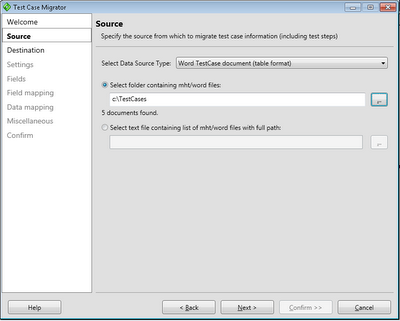
After starting and clicking Next in the welcome screen the first real step is to select your data source. In order to import word test cases select the Word TestCase document (table format) and enter or select the path to a folder containing your word test cases.


#2 Select your target team project
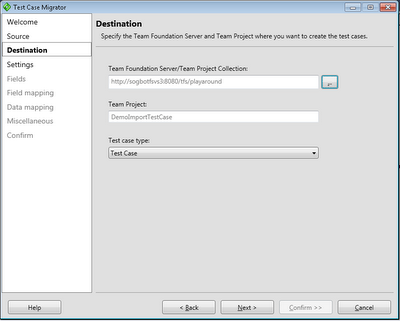
The next step is to select your target team project. You also need to select the Work Item Type representing a Test Case.


#3 Create a new settings file
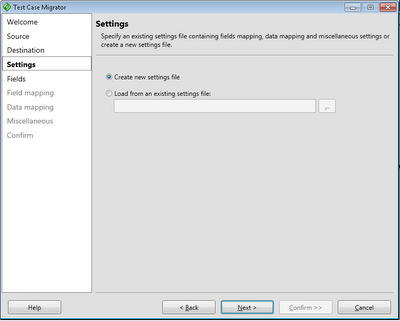
The third step is to simply create a new settings file. You can also load a previous saved settings file.


#4 Fields listing
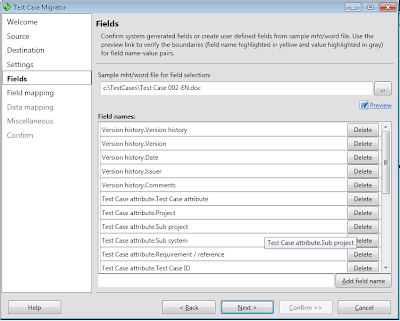
The next step is to modify the list of detected fields. The tools scans a document for labels and captions and presents a list of them. If you miss any field you can add and you can them and the tool will check if it can find it. If your list is empty or doesnt contain any of the fields you expected your document layout can't be processed by the current version of the tool.

You can also delete unwanted fields from the list to make it simpler to handle in the coming steps. When you click next all documents are scanned to verify that the fields can be found in every document. This can take a while if you have many documents, for example 100 documents takes 10-20 minutes (or more) to scan depending on your computer.


#5 Map your fields against TFS fields
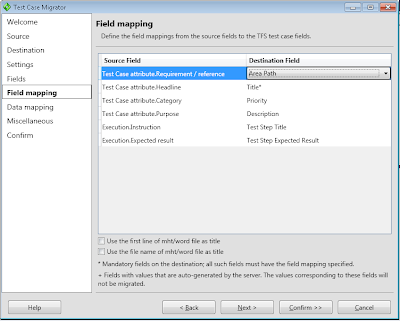
Now it's time to map your "word" fields against the fields in the tfs test case work item. The Test Step Title and Test Step Expected Result is treated special and the tool will iterate through all values and create test steps.


#6 Map values against TFS values
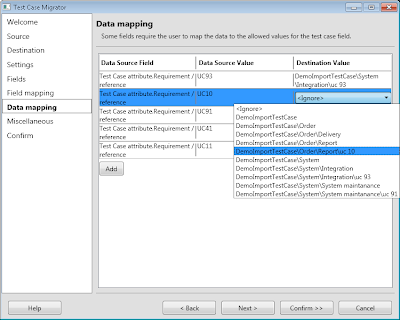
For fields who has defined value lists in TFS you will be prompted to map your word value against the valid TFS values. In this example I mapped the TFS Area fields against the RequirementReference word field in the previous step. This will allows me to map the text values in word to an Area path in TFS.


#7 Save settings
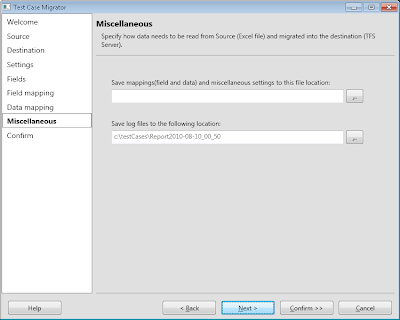
Before you start importing you can save your settings to a file and change the default location of the log file.


#8 Confirm
Simply click Save and Migrate to start the import. As most of the work is done in earlier steps the import process is rather quick.


#9 Verify outcome
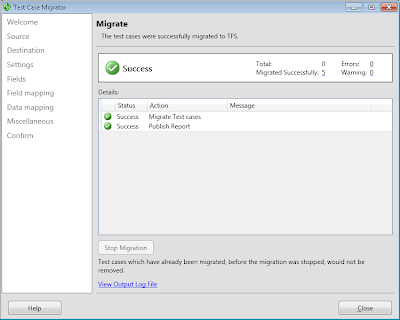
After the import is completed you will hopefully se a screen similar to this. You may also receive warnings and errors for part of the import. If you do, click the View output log file link and try to figure out what documents has problems and what to do to it.

Tuesday, June 8, 2010

Updates to my extensions of the TestCase Migrator Tool

As described in my earlier post I made some extensions to the Test Case Migration Tool, http://tcmimport.codeplex.com/ so it can handle importing old test cases in word documents to Microsoft Test Manager. Recently I have tested to import 100+ test cases with a slightly different template. Of course its always something that can be done better so I've updated my extensions to be more tolerant to differences in templates.

You can find the latest bits http://cid-5d46cae8c0008cf0.office.live.com/self.aspx/.Public/TestCaseMigratorExtendedExe.zip
You can also find the source at http://cid-5d46cae8c0008cf0.office.live.com/self.aspx/.Public/TestCaseMigratorExtendedSource.zip

Wednesday, April 21, 2010

Sogeti TMAP process template certified and ready


Today we finalized the RTM version of our TMAP process template and it will soon be available for free download from the official TMAP.Net site there you also can find more information about the TMAP process and the latest news from the testing field. You can also go directly to the download page located at http://eng.tmap.net/Home/archief/957794.jsp.

Certified process template
Sogeti's TMAP template has as the first template passed the new Visual Studio Certified Process Templates Program announced by Microsoft and can therefore use the new Certified process template logo. If you want to know more about the certification program Stephanie Saad Cuthbertson has a post on the details.

TMAP.codeplex.com
The TMAP template will continue to develop and improve on codeplex. You will still find the latest bits and contribute on the future directions of the TMAP process template by filing feedback and suggestions at tmap.codeplex.com.

Friday, April 9, 2010

Tool for import word test case documents to Microsoft Test Manager

Updates to my extensions of the TestCase Migrator Tool http://mskold.blogspot.com/2010/06/updates-to-my-extensions-of-testcase.html

Recently I had a case there I needed to import old test cases written in word into Microsoft Test Manager. I looked around for a tool capable of importing an ordinary test case written in word, but I didn't find any tool or solution.

Word - the world's most used test tool ?
In my experience most projects who have had formalized test cases has done them in word documents containing test case information (title of the test case, description, pre-conditions, use case identification) and test steps. The test steps has the format of a table with columns for actions and expected results.

Test Case Migration Tool on codeplex
The best match I found was the Test Case Migrator Tool on codeplex (http://tcmimport.codeplex.com). With this tool I could import Excel test cases and MTH files (Microsoft's word template for test cases from earlier versions of Microsoft Test Edition). This looked like a promising tool but when I tried it on our existing test cases written by a standard test case template the tool didn't manage to import the test cases. It seemed the tool was to hard connected to the structure of the MTH template.

Extending the Test case migration Tool
As the project was on codeplex with the source code available I did take a look to see if I could adopt the tool to our template. As the tool had a nice separation of the logic for parsing and importing data sources , I simply created a new data source and wrote my own parsing logic for our template. At first i simply replaced the MTH data source with my, but ones I got the parsing logic to work I started to integrate it as a new data source in the UI. This turned out to be a bigger task then writing the parsing logic. It took some time but at least the result looks good.

The extended Test Case Migration Tool is available
I have uploaded both the compiled version and the source with my modifications as I guess many other will find themselves in the same situation as I was - looking for a tool to batch import word test cases. Hopefully this could be a solution for some of you .

Friday, March 26, 2010

Swedish site about VS2010 TMAP process template

Now you can read more about Sogeti's TMAP process template for Visual Studio 2010 (in Swedish). At www.sogeti.se/Test-Microsoft you can find a brief description of Microsoft test tools and Sogeti's TMAP process template.

TMAP Flyers
You can also download flyers (in Swedish) for the VS2010 TMAP and process template. There is also flyers focused only on TMAP as a method and Sogeti's other testing services.

Events about TMAP and Microsoft Test tools
You can also find information about upcoming events around Microsoft test tools and TMAP. The first event will be at Microsoft Sweden on the 23 of April. This event will be followed by several events around the country.

Tuesday, March 9, 2010

TMAP for VS2010 RC released

Clemens just released a new version of Sogetis TMAP process template for VS2010. Ive just started to install it on our swedish 2010 pre-release server so our swedish testers can evaluate ,learn and contribute to it.