As described in my earlier post I made some extensions to the Test Case Migration Tool, http://tcmimport.codeplex.com/ so it can handle importing old test cases in word documents to Microsoft Test Manager. Recently I have tested to import 100+ test cases with a slightly different template. Of course its always something that can be done better so I've updated my extensions to be more tolerant to differences in templates.
You can find the latest bits http://cid-5d46cae8c0008cf0.office.live.com/self.aspx/.Public/TestCaseMigratorExtendedExe.zip
You can also find the source at http://cid-5d46cae8c0008cf0.office.live.com/self.aspx/.Public/TestCaseMigratorExtendedSource.zip
Tuesday, June 8, 2010


Saturday, May 29, 2010
Last changed Team projects - Custom Report for tfs 2008
As a TFS admin I sometime wonder how many team projects is in use and maybe when it was last changed. Sometimes I've been forced to find out and I have created some SQL queries to run against the warehouse to figure it out.
Packaged into an custom SSRS Report
Now I have packaged those queries into a custom SSRS report for tfs2008. You download the report at my skydrive http://cid-5d46cae8c0008cf0.skydrive.live.com/self.aspx/.Public/TeamProjectLastChanged.rdl Once downloaded you simply needs to upload it to your own TFS Server and point the data source to the tfs standard TFSReportDs shared data source.
TFS2010 updated version http://cid-5d46cae8c0008cf0.office.live.com/self.aspx/.Public/TeamProjectLastChanged2010.rdl
Packaged into an custom SSRS Report
Now I have packaged those queries into a custom SSRS report for tfs2008. You download the report at my skydrive http://cid-5d46cae8c0008cf0.skydrive.live.com/self.aspx/.Public/TeamProjectLastChanged.rdl Once downloaded you simply needs to upload it to your own TFS Server and point the data source to the tfs standard TFSReportDs shared data source.
TFS2010 updated version http://cid-5d46cae8c0008cf0.office.live.com/self.aspx/.Public/TeamProjectLastChanged2010.rdl
Monday, May 17, 2010
TFS with WSS 3 to SharePoint Foundation 2010 upgrade
During the weekend we successfully upgraded a production server from TFS2010Beta2/WSS3 to TFS 2010 RTM/SharePoint Foundation2010 RTM. The new challenge in this, apart from the usual upgrade of a production server, was to include upgrading WSS3 to SharePoint Foundation 2010.
Migration scenario
In this case we went for the Server Migration/upgrade scenario, which is very good if you need to verify and test our upgrade routines. This was very important as we to include the move from WSS to SharePoint Foundation 2010 in the upgrade and the WSS upgrade procedure hasn't made it into the official installation documentation yet, so we had to find the right way before we went for the big move.
Don't forget the InstanceId
If you migrate your server to a new hardware for testing purposes, or simply keeps the original server on the network, you have to change the instanceid of your server. Buck Hodges has a post on this, including information on how to change instanceid in TFS 2010. http://blogs.msdn.com/buckh/archive/2006/10/17/creating-a-new-server-from-an-old-one-beware-of-the-instanceid.aspx
Installation of SharePoint Foundation 2010
This was really simple, once I got the install of SharePoint Foundation 2010 right. Sadly to say it took me several tries getting a new unwanted separate SQL instance for SharePoint. If you want to use your existing SQL instance you have to select Server Farm installation and then Complete Server Farm. IF you select that path, you can point out your existing SQL Server instance during configuration.
Upgrade from WSS to SharePoint Foundation 2010
Searching for information how to upgrade tfs & wss to SPF 2010 I found this posts http://sharepointgeorge.com/2009/upgrading-content-database-sharepoint-2010-database-attach-method/
During verification of content db it prompted for two non blocking missing components, as expected, as I had not configured TFS and it SharePoint extensions yet.
Attaching the content db using stsadm -o addcontentdb -url-databasename resulted in an attached and upgraded content database up and running according to the Managed content databases pages in SharePoint Central Administration. Browsing to team project portals did howevere not work at this stage.
After configuring TFS and upgrading the team project collection witch installs the TFS add-ons to SharePoint, browsing to the project portals worked fine as far as we could se.
The upgrade process in short steps
Install Server roles according to TFS installation
Install SQL Server according to TFS installation
Install SQL Server SP1 Cumulative update package 2, KB 970315 (http://support.microsoft.com/kb/970315)
Restore Reporting Services
Install SharePoint Foundation 2010 PreReq
Restart
Install SharePoint Foundation
Install Team Foundation Server
Import wss3 content database
Configure TFS
Upgrade team project collection
Update Instance Id
Migration scenario
In this case we went for the Server Migration/upgrade scenario, which is very good if you need to verify and test our upgrade routines. This was very important as we to include the move from WSS to SharePoint Foundation 2010 in the upgrade and the WSS upgrade procedure hasn't made it into the official installation documentation yet, so we had to find the right way before we went for the big move.
Don't forget the InstanceId
If you migrate your server to a new hardware for testing purposes, or simply keeps the original server on the network, you have to change the instanceid of your server. Buck Hodges has a post on this, including information on how to change instanceid in TFS 2010. http://blogs.msdn.com/buckh/archive/2006/10/17/creating-a-new-server-from-an-old-one-beware-of-the-instanceid.aspx
Installation of SharePoint Foundation 2010
This was really simple, once I got the install of SharePoint Foundation 2010 right. Sadly to say it took me several tries getting a new unwanted separate SQL instance for SharePoint. If you want to use your existing SQL instance you have to select Server Farm installation and then Complete Server Farm. IF you select that path, you can point out your existing SQL Server instance during configuration.
Upgrade from WSS to SharePoint Foundation 2010
Searching for information how to upgrade tfs & wss to SPF 2010 I found this posts http://sharepointgeorge.com/2009/upgrading-content-database-sharepoint-2010-database-attach-method/
During verification of content db it prompted for two non blocking missing components, as expected, as I had not configured TFS and it SharePoint extensions yet.
Attaching the content db using stsadm -o addcontentdb -url
After configuring TFS and upgrading the team project collection witch installs the TFS add-ons to SharePoint, browsing to the project portals worked fine as far as we could se.
The upgrade process in short steps
Install Server roles according to TFS installation
Install SQL Server according to TFS installation
Install SQL Server SP1 Cumulative update package 2, KB 970315 (http://support.microsoft.com/kb/970315)
Restore Reporting Services
Stop Reporting services Restore backup, Start Restore encryption keys Remove Orginal server from scale out deployment Verify
Restart
Install SharePoint Foundation
Select Server Farm, Select Complete Configure Create New Farm Use existing SQL server
Install Team Foundation Server
Import wss3 content database
Verify using SharePoint 2010 Management Shell and run Test-SPContentDatabase –Name -WebApplication 2 Missing components Attach database stsadm -o addcontentdb -url -databasename
Configure TFS
Upgrade team project collection
Update Instance Id
iisreset /stop tfsconfig changeserverid /sqlinstance: /databasename:Tfs_Configuration tfsconfig registerdb /sqlinstance: /databaseName:Tfs_Configuration iisreset /start net start tfsjobagent
Wednesday, April 21, 2010
Sogeti TMAP process template certified and ready

Today we finalized the RTM version of our TMAP process template and it will soon be available for free download from the official TMAP.Net site there you also can find more information about the TMAP process and the latest news from the testing field. You can also go directly to the download page located at http://eng.tmap.net/Home/archief/957794.jsp.
 Certified process template
Sogeti's TMAP template has as the first template passed the new Visual Studio Certified Process Templates Program announced by Microsoft and can therefore use the new Certified process template logo. If you want to know more about the certification program Stephanie Saad Cuthbertson has a post on the details.
TMAP.codeplex.com
The TMAP template will continue to develop and improve on codeplex. You will still find the latest bits and contribute on the future directions of the TMAP process template by filing feedback and suggestions at tmap.codeplex.com.
Upgrading TFS 2010 RTM from pre-release versions
Today I upgraded one of our internal pre-release server and moved in to a new machine. What before in the old days with TFS2008 could be a real painful experience taking several hours or even days to perform could now mostly be handled in an hour.
Preparations
This post is simply a brief description of the main steps and what to do and expect. If you want a more detailed information and as preparation always is the key to success I recommend you to read the following
The first step is to backup the current environment, be it databases or taking a snapshot of your existing environment. Once that's done Its time to uninstall the previous installed pre-release versions. You can leave the .Net framework as it will be upgraded, but TFS2010 Beta2/RC must be uninstalled. After removing the Pre release versions simply install TFS2010 RTM, It's a very easy and quite fast but did take me a reboot to finish it.
Once installed its time to configure your server. If your moving from prerelease versions it's important that you select Upgrade in the first page of the configuration wizard. Follow the steps of the wizard and then you finish the upgrade you will have an upgraded Team Project Collection.
Move to new machine = Detach, Move, Attach
If you want to move to a new clean machine (without any previous installed beta software) you simply Detach your newly upgraded team project collection using Team Foundation Administrative Console. Once detached backup the database TFS_MyProjectcollectionName to file using SQL Manager.
Now it's time to move to a new fresh start. Simply Install and configure TFS2010 RTM on a clean machine. After its done, restore the previous backed up database to the new SQL Server using SQL Manager. Once installed its time to attach, simply point out the database and attach it to your server and you now have your upgraded team project collection up and running on your new server.
Preparations
This post is simply a brief description of the main steps and what to do and expect. If you want a more detailed information and as preparation always is the key to success I recommend you to read the following
- Microsoft Team Foundation 2010 Install guide
- VS ALM Rangers TFS 2010 Upgrade guide at codeplex
- Bryan Krigers post on TFS 2010 Upgrade
- SSW's Rules To Better TFS 2010 Migration
The first step is to backup the current environment, be it databases or taking a snapshot of your existing environment. Once that's done Its time to uninstall the previous installed pre-release versions. You can leave the .Net framework as it will be upgraded, but TFS2010 Beta2/RC must be uninstalled. After removing the Pre release versions simply install TFS2010 RTM, It's a very easy and quite fast but did take me a reboot to finish it.
Once installed its time to configure your server. If your moving from prerelease versions it's important that you select Upgrade in the first page of the configuration wizard. Follow the steps of the wizard and then you finish the upgrade you will have an upgraded Team Project Collection.
Move to new machine = Detach, Move, Attach
If you want to move to a new clean machine (without any previous installed beta software) you simply Detach your newly upgraded team project collection using Team Foundation Administrative Console. Once detached backup the database TFS_MyProjectcollectionName to file using SQL Manager.
Now it's time to move to a new fresh start. Simply Install and configure TFS2010 RTM on a clean machine. After its done, restore the previous backed up database to the new SQL Server using SQL Manager. Once installed its time to attach, simply point out the database and attach it to your server and you now have your upgraded team project collection up and running on your new server.
Friday, April 9, 2010
Tool for import word test case documents to Microsoft Test Manager
Updates to my extensions of the TestCase Migrator Tool http://mskold.blogspot.com/2010/06/updates-to-my-extensions-of-testcase.html
Recently I had a case there I needed to import old test cases written in word into Microsoft Test Manager. I looked around for a tool capable of importing an ordinary test case written in word, but I didn't find any tool or solution.
Word - the world's most used test tool ?
In my experience most projects who have had formalized test cases has done them in word documents containing test case information (title of the test case, description, pre-conditions, use case identification) and test steps. The test steps has the format of a table with columns for actions and expected results.
Test Case Migration Tool on codeplex
The best match I found was the Test Case Migrator Tool on codeplex (http://tcmimport.codeplex.com). With this tool I could import Excel test cases and MTH files (Microsoft's word template for test cases from earlier versions of Microsoft Test Edition). This looked like a promising tool but when I tried it on our existing test cases written by a standard test case template the tool didn't manage to import the test cases. It seemed the tool was to hard connected to the structure of the MTH template.
Extending the Test ca se migration Tool
As the project was on codeplex with the source code available I did take a look to see if I could adopt the tool to our template. As the tool had a nice separation of the logic for parsing and importing data sources , I simply created a new data source and wrote my own parsing logic for our template. At first i simply replaced the MTH data source with my, but ones I got the parsing logic to work I started to integrate it as a new data source in the UI. This turned out to be a bigger task then writing the parsing logic. It took some time but at least the result looks good.
The extended Test Case Migration Tool is available
I have uploaded both the compiled version and the source with my modifications as I guess many other will find themselves in the same situation as I was - looking for a tool to batch import word test cases. Hopefully this could be a solution for some of you .
Recently I had a case there I needed to import old test cases written in word into Microsoft Test Manager. I looked around for a tool capable of importing an ordinary test case written in word, but I didn't find any tool or solution.
Word - the world's most used test tool ?

In my experience most projects who have had formalized test cases has done them in word documents containing test case information (title of the test case, description, pre-conditions, use case identification) and test steps. The test steps has the format of a table with columns for actions and expected results.
Test Case Migration Tool on codeplex
The best match I found was the Test Case Migrator Tool on codeplex (http://tcmimport.codeplex.com). With this tool I could import Excel test cases and MTH files (Microsoft's word template for test cases from earlier versions of Microsoft Test Edition). This looked like a promising tool but when I tried it on our existing test cases written by a standard test case template the tool didn't manage to import the test cases. It seemed the tool was to hard connected to the structure of the MTH template.
Extending the Test ca
 se migration Tool
As the project was on codeplex with the source code available I did take a look to see if I could adopt the tool to our template. As the tool had a nice separation of the logic for parsing and importing data sources , I simply created a new data source and wrote my own parsing logic for our template. At first i simply replaced the MTH data source with my, but ones I got the parsing logic to work I started to integrate it as a new data source in the UI. This turned out to be a bigger task then writing the parsing logic. It took some time but at least the result looks good.
The extended Test Case Migration Tool is available
I have uploaded both the compiled version and the source with my modifications as I guess many other will find themselves in the same situation as I was - looking for a tool to batch import word test cases. Hopefully this could be a solution for some of you .
Thursday, April 8, 2010
Contacting all users running non Tfs2010 compatible clients
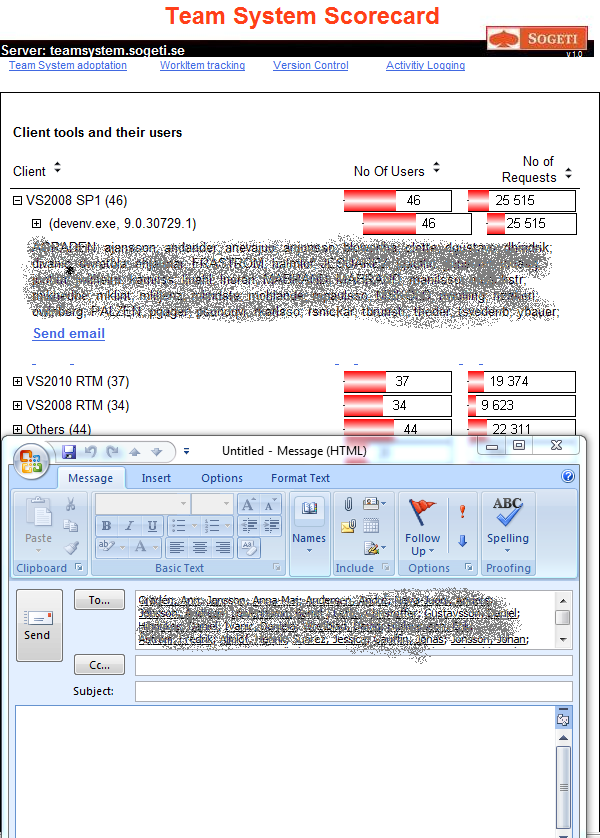
Looking at migrations of several tfs servers with 100+ users, I got the urgent need to track and inform users not already upgraded vs2008 & vs2005 with forward compatibility pack. Tracking is easy, I use the Tfs Scorecard and its activity logging features to figure out who is running vs200 RTM and SP1 clients. The problem is that I don't get a good list to paste into a mail, due to reports format and user formats.
Easier to send mail
After looking at the report a number of times and thinking " It would be good to have an send mail button" I finally did something about it. In the Tfs Scorecard clients report I added a list of user accounts and a Send Email link creating a new email with all email addresses, visible if you expand the first level.
This latest feature is now available in source control at http://tfsscorecard.codeplex.com , direct link http://tfsscorecard.codeplex.com/SourceControl/changeset/changes/46822
Subscribe to:
Posts (Atom)

 Posts
Posts


