If you have experienced rapid growth of your tfs database size you have hopefully aware of the Test Attachments Cleaner Power tool. If you have used it you probably also noticed that it’s easier to do the cleaning then to find out what’s needs cleaning.
Test Attachments Power tool – Missing pieces
The problem is that you need to know what team project that needs cleaning and what kinds of attachment it has. There are a couple of posts out there with SQL to run against the TFS Production databases, which by the way is not supported. Once you know what projects to clean and what the attachments data consist of, you can create a command line that calls the test attachments cleaner power tool to do the cleaning.
If you have about 100+ team projects to handle this is far from the best experience. What you really would like is an easy way to:
1) Find team projects with large attachment sizes.
2) Analyze the structure of test attachment data.
3) Select action and kick of the test attachment cleaner power tool.
Test Attachment Sizes window in Tfs Administrators Toolkit
As I manage a couple tfs servers with 100+ team projects I decided to try to fill the gap. The result of my effort is the new Test Attachment Sizes window in Tfs Administrators Toolkit. It gives you the following features:
• Breakdown of totals Test Attachments sizes by type and extensions.
• A sortable list with team project and its total test attachment size
• Breakdown of team project test attachments by type and extensions
• Selecting action and calling Test Attachment Cleaner power tool, either direct or generating a bat file
I’ve released an updated version of the Tfs Administrators Toolkit with the new Test Attachments Sizes feature along with some minor fixes at http://visualstudiogallery.msdn.microsoft.com/11f5e313-ced1-4713-9794-d7300c7d12e0
Monday, May 14, 2012


Saturday, May 5, 2012
Generate accumulated Release Notes in TFS build
Have you ever wanted to have the build process generate an automated generated release notes document for all changes accumulated form the last release? This is how you can do it with Tfs Build Extensions.
The plan
The plan is simple, Let the user set a baseline label name in the build definition, get a list of changesets by comparing the baseline label with the current build label. From the list of changesets get comments, Associated Work items and changed files. With the list of changesets and work items it should be possible to generate a Release Notes document.
Now all we need to do is code this, or even better reuse something existing. Now, if you’re trying to do something within build automation, and you would need to write your own custom activities you should probably start by looking at the Community TFS build extensions project at codeplex, before you start coding.
TFS Build extensions BuildReport and CompareLabels activities
A fast look at the list of activities in the shows two interesting candidates, there is both a CompareLabels and an BuildReport activity.
Looking a bit closer, the CompareLabels activity takes two Labels and generates a list of changesets and the BuildReport activity takes a list of changesets and generates a build report in .html or .txt and you can customize the generated report by applying your own xslt transformation fie.
This is about everything we need and we should hopefully only need to drag the activities into our build process workflow and make sure we pass the output list of changesets from the CompareLabels activity to the BuildReport input parameter.
The hiccups
Putting the plan to work, we soon run into to trouble, to start with the CompareLabels activity doesn’t takes label names as input as one might hope for, instead it requires VersionControlLabel objects, and on top of that it also needs a VersionControlServer object.
At first, this may be discouraging, but it isn’t such a big problem as we can use the tfs api directly inside the build workflow, and if we manage to get an VersionControlServer we could use it to get a the VersionControlLabel objects by using the QueryLabels method of VersionControlServer.
Getting a VersionControlServer
First we need to get an instance of a VersionControlServer, so we start by declaring it as a variable. The VersionControlServer is created by calling GetService() of a tfsTeamProjectCollection object. If we have the Uri of the teamprojectcollection we can create it by specifying it in the constructor. We can get the Uri for the current collection from the BuildDetail object we have in our build. Putting it all together in (vb.net) results in this expression
Getting the VersionControlLabel for a label name
Once we got the scSrv we can use the QueryLabels method to get our VersionControlLabel objects from the LabelName. We have the current label in BuildDetail.BuildLabelName, but it expressed as Labelnamne@sourcecontrolpath. What we need to pass into the QueryLabel is label name and source control path in different variables.
We need to split the string into two separate strings (currentLabelName and sourcecontrolPath) by using the split method as follow.
currentLabelName = BuildDetail.LabelName.Split(New Char() {"@"c})(0)
labelSrcPath = BuildDetail.LabelName.Split(New Char() {"@"c})(1)
Now we can call QueryLabel to get the VersionControlLabel objecs,
 Stitching it together
Now we got everything figured out, now we just need to complement our sequence with a couple of assigns to get the VersionControlServer and splitting the labelstring.
We also got to change the properties of the CompareLabels activity to use QueryLabel method.

Running this could be a bit noisy in the build log, so to make it a bit more silent, we can manully editing the xaml file and add


The plan
The plan is simple, Let the user set a baseline label name in the build definition, get a list of changesets by comparing the baseline label with the current build label. From the list of changesets get comments, Associated Work items and changed files. With the list of changesets and work items it should be possible to generate a Release Notes document.
Now all we need to do is code this, or even better reuse something existing. Now, if you’re trying to do something within build automation, and you would need to write your own custom activities you should probably start by looking at the Community TFS build extensions project at codeplex, before you start coding.
TFS Build extensions BuildReport and CompareLabels activities
A fast look at the list of activities in the shows two interesting candidates, there is both a CompareLabels and an BuildReport activity.
Looking a bit closer, the CompareLabels activity takes two Labels and generates a list of changesets and the BuildReport activity takes a list of changesets and generates a build report in .html or .txt and you can customize the generated report by applying your own xslt transformation fie.
This is about everything we need and we should hopefully only need to drag the activities into our build process workflow and make sure we pass the output list of changesets from the CompareLabels activity to the BuildReport input parameter.
The hiccups
Putting the plan to work, we soon run into to trouble, to start with the CompareLabels activity doesn’t takes label names as input as one might hope for, instead it requires VersionControlLabel objects, and on top of that it also needs a VersionControlServer object.
At first, this may be discouraging, but it isn’t such a big problem as we can use the tfs api directly inside the build workflow, and if we manage to get an VersionControlServer we could use it to get a the VersionControlLabel objects by using the QueryLabels method of VersionControlServer.
Getting a VersionControlServer
First we need to get an instance of a VersionControlServer, so we start by declaring it as a variable. The VersionControlServer is created by calling GetService() of a tfsTeamProjectCollection object. If we have the Uri of the teamprojectcollection we can create it by specifying it in the constructor. We can get the Uri for the current collection from the BuildDetail object we have in our build. Putting it all together in (vb.net) results in this expression
scSrv=CType(
New TfsTeamProjectCollection(
New Uri(BuildDetail.BuildServer.TeamProjectCollection.Uri.ToString())
).GetService(GetType(VersionControlServer))
, VersionControlServer)
New TfsTeamProjectCollection(
New Uri(BuildDetail.BuildServer.TeamProjectCollection.Uri.ToString())
).GetService(GetType(VersionControlServer))
, VersionControlServer)
Getting the VersionControlLabel for a label name
Once we got the scSrv we can use the QueryLabels method to get our VersionControlLabel objects from the LabelName. We have the current label in BuildDetail.BuildLabelName, but it expressed as Labelnamne@sourcecontrolpath. What we need to pass into the QueryLabel is label name and source control path in different variables.
We need to split the string into two separate strings (currentLabelName and sourcecontrolPath) by using the split method as follow.
currentLabelName = BuildDetail.LabelName.Split(New Char() {"@"c})(0)
labelSrcPath = BuildDetail.LabelName.Split(New Char() {"@"c})(1)
scSrv.QueryLabels(currentLabelName ,
labelSCPath, Nothing, False)(0)
scSrv.QueryLabels(BuildReportFromBuildLabel,
labelSCPath, Nothing, False)(0)
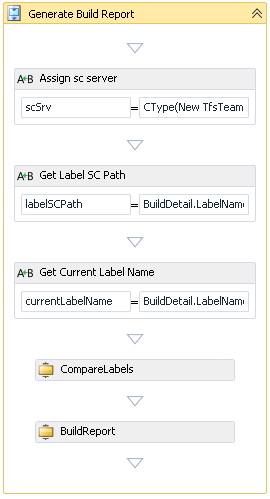
Now we got everything figured out, now we just need to complement our sequence with a couple of assigns to get the VersionControlServer and splitting the labelstring.
We also got to change the properties of the CompareLabels activity to use QueryLabel method.

Running this could be a bit noisy in the build log, so to make it a bit more silent, we can manully editing the xaml file and add
mtbwt:BuildTrackingParticipant.Importance="None" to each activity we want to exlude the output from.
We also need to declare the input baseline label name as an build argument and make it visible in the edit build definition form. This is done by fist adding a build argument like this:

To make it visible in the builddefinition editor we need add metadata for the build argument, this is done by locating the Metadata argument and clicking the edit button. We simply add an item for our baseline build label and selects the desired visibility in the View this parameter when dropdown. To make it visible in the build defninition editor select Only while editing a definition

The result
Before we run the build we need to specify the label name of the last release, so that we can get all changes after that label into our release document.
Running the build will generate a ReleaseNotes.txt, a RelaseNote.html and a ReleaseNotes.xml file in the root of the drop folder. This document is rather changesets oriented, but by supplying our own xslt file we should be able to turn the release document into a list of work items, and if we like list all changesets with comments.
Thursday, April 19, 2012
Minor updates to TFS Administrators Toolkit
Ive just uploaded an update to the TFS Administrators Toolkit fixing the following UI glitches:
- Unified the UI in the same style
- Update Reports now works with resizing windows
- Update Work Item Types now works with resizing windows
- Source Control Folder Size now shows sizes in a own column
- Search Large files better formating of Size column
Monday, April 9, 2012
TFS 2010 Team Alert Subscription Tool Beta
This is now released as a free VS2010 Add-In, Please refer to Visual Studio Gallery
http://visualstudiogallery.msdn.microsoft.com/418522f7-6a2a-439f-a874-5e8190bbdbc8
This actually started as a tool/hack I started to upgrade to include in the TFS Administrators Toolkit, but after some thoughts I decided that it’s probably a good idea to release it as a separate Visual Studio extension on the Visual Studio Gallery. Team Alerts in TFS 2010
TFS 2010 has an alert system and tools to make users subscribe to alerts quite easy. What TFS 2010 doesn’t support is to setup Team Alerts (This feature is added in the public TFS 11 Beta). Although it is possible to setup Alerts for other users, TFS 2010 doesn’t offer an easy tool for this. So if you want to setup your project or team with a nice set of alerts, you would run into trouble, as there hasn’t been an easy way to accomplish that on TFS 2010.
Team Alert Subscriptions Tool
The Team Alert Subscriptions Tool will help you to setup and apply Team Alerts for different groups in your team project. It will do this by creating Alert templates for groups, and automate creation individual alerts for each user in the targeted group.
Intended feature set
The main features will be:
• A UI for creating Team Alerts by converting “ordinary” Alerts
• Subscribe and Unsubscribe functions to create and remove individual subscriptions
• Update All Team Alerts Subscriptions
To automatically apply Team Alerts then you add or remove users is possible bur would require a server part constantly connected and listening for security changes, such as a new user added to a team project group. This will not be included in the VS add in, but might be released as a separate download or extension.
Current state

I have done most of the UI and I’m currently testing it. This is the current screenshot:
As before I’m looking for volunteers to test and contribute to the development of the Team Alerts Subscription Tools.
Thursday, March 29, 2012
TFS Administrators Toolkit
Over time I’ve written a couple of tools to ease the headaches that sometimes comes from running a couple of TFS servers. Most of them I just hacked together to get a working state, command line tool. Once the problem was solved I simply backed up the source, and went on with the next problem. This has not been a good approach for long run reuse and efficiency.
Collected and published as a Visual Studio add-in
This time then I needed some of the tools, I decided to put a little more effort into it and try to collect the different tool in a collection, build some basic UI and publish them as a Visual Studio Add-In. I will try to pick and hopefully convert the tools and add them to the toolkit as I find the needs for them.
First of: Update Reports and Work Item types for a team project collection
I actually started already, by converting two tools used to do batch updates of already created team projects. It can be quite a work to update a number of team projects with new features developed such as reports or Work Item Types customizations. With the TFS Administrators toolkit you can simply do it with a couple of clicks, and sit down and enjoy while the tools updates the selected team projects for you.
You will find the TFS Administrators Toolkit Visual Studio Add-in on Visual Studio Gallery http://visualstudiogallery.msdn.microsoft.com/11f5e313-ced1-4713-9794-d7300c7d12e0
Collected and published as a Visual Studio add-in
This time then I needed some of the tools, I decided to put a little more effort into it and try to collect the different tool in a collection, build some basic UI and publish them as a Visual Studio Add-In. I will try to pick and hopefully convert the tools and add them to the toolkit as I find the needs for them.
First of: Update Reports and Work Item types for a team project collection
I actually started already, by converting two tools used to do batch updates of already created team projects. It can be quite a work to update a number of team projects with new features developed such as reports or Work Item Types customizations. With the TFS Administrators toolkit you can simply do it with a couple of clicks, and sit down and enjoy while the tools updates the selected team projects for you.
You will find the TFS Administrators Toolkit Visual Studio Add-in on Visual Studio Gallery http://visualstudiogallery.msdn.microsoft.com/11f5e313-ced1-4713-9794-d7300c7d12e0
Thursday, March 15, 2012
Iteration Manager feature complete, Public beta available
 A couple of weeks ago I posted about a new Visual Studio Add-In I’ve started to work on. Thegood news is that the add-in is now feature complete, at least for the intended feature set for the first release. So far it’s undergone a limited amount of testing by a handful brave persons.
Public beta available
I’m making the plugin publicly available for anyone who wants to test it and provide feedback. If you want to test it, you can simply download it form this link https://skydrive.live.com/#cid=5D46CAE8C0008CF0&id=5D46CAE8C0008CF0!1027. Once downloaded simply open it and it will install itself inside visual studio 2010.
Current feature set
Once installed, the Iteration Manager add-in adds a new menu item to the Team Project menu in team explorer. From there you can access the Iteration Manager for the selected team project and select the operation you want to use.
Iteration manager feature set
Under the Iteration Manager menu you will find this menu to access the different operations Iteration Manager can assist you with.

New Iteration
The new iteration operations assist you in creating iterations. It can assist you with the following:
• Create the Iteration Node
• Create a Sprint work item and set iteration and dates.
• Create a new Iteration query folder, by copying a template query folder, and edit all queries to select your new iteration.
The different options will be dependent on your process template and your configurations.

Change current iteration
The Change Current Iteration operations assist you in changing the current iteration in your team project by editing and changing the iteration filter for all queries in your Current sprint folder.

Configure Iteration Manager
The Configure Iteration Manager options is a place there you hopefully don’t need to go to change anything if your running any of the common process templates. If you made customizations to your team project, or have any other needs, you can configure the different actions the iteration manager performs in the other operations.

Thursday, February 23, 2012
Iteration Manager VS Add-In - Testers wanted
Are you tired of copying and editing a lot of Team Queries for every new iteration ? Are you willing to try and test a prerelease version of a new tool ?
Iteration Manager Visual Studio Add-In
I've started transforming a little tool I’ve been using to ease the bourdon of managing iterations in TFS to a full blown Visual Studio Add-In to handle Iteration management. My goal is to release it on the Visual Studio Gallery, during this spring. But before I release it would be good to have it thoroughly tested That’s why I’m making an open invitation for everyone who would be interested in testing this new Visual Studio Add-In.
Intended feature set
This is the main features I’m intending to implement before official released on Visual Studio Gallery:
Current state
At this moment I have a working Visual Studio Add-In integration with team explorer, offering a simply UI to create a new Iteration and create a team query folder by copying an existing folder and replacing iteration filters in the queries. The next action is to start writing the configuration and auto detection parts.
Interested – Get in touch
If you are interested in testing the prerelease version of Iteration Manager Visual Studio Add-In please drop a line on twitter (mattiasskold) or contact me on IM,you can also dropp a file with your contact information on SkyDrive and Il will get back to you.
Iteration Manager Visual Studio Add-In
I've started transforming a little tool I’ve been using to ease the bourdon of managing iterations in TFS to a full blown Visual Studio Add-In to handle Iteration management. My goal is to release it on the Visual Studio Gallery, during this spring. But before I release it would be good to have it thoroughly tested That’s why I’m making an open invitation for everyone who would be interested in testing this new Visual Studio Add-In.
Intended feature set
This is the main features I’m intending to implement before official released on Visual Studio Gallery:
- A Visual Studio Add-In using the current team explorer connection
- Automatically configure settings based on process template
- Create new Iteration, optional configurable task:
- Create “Sprint” work item and set sprint dates
- Create a new team query Iteration folder based on template
- Change current iteration
- Reconfigure team queries in current Iteration team query folder
- Vs11 version
- “Repair” team queries after Rename of iteration (and areas)
- Recreate all iteration folders based on template
- Integration with Team Portals
- Integration with Reporting Services
Current state
At this moment I have a working Visual Studio Add-In integration with team explorer, offering a simply UI to create a new Iteration and create a team query folder by copying an existing folder and replacing iteration filters in the queries. The next action is to start writing the configuration and auto detection parts.
Interested – Get in touch
If you are interested in testing the prerelease version of Iteration Manager Visual Studio Add-In please drop a line on twitter (mattiasskold) or contact me on IM,you can also dropp a file with your contact information on SkyDrive and Il will get back to you.
Subscribe to:
Posts (Atom)

 Posts
Posts


 Mattias Sköld